
Logging In
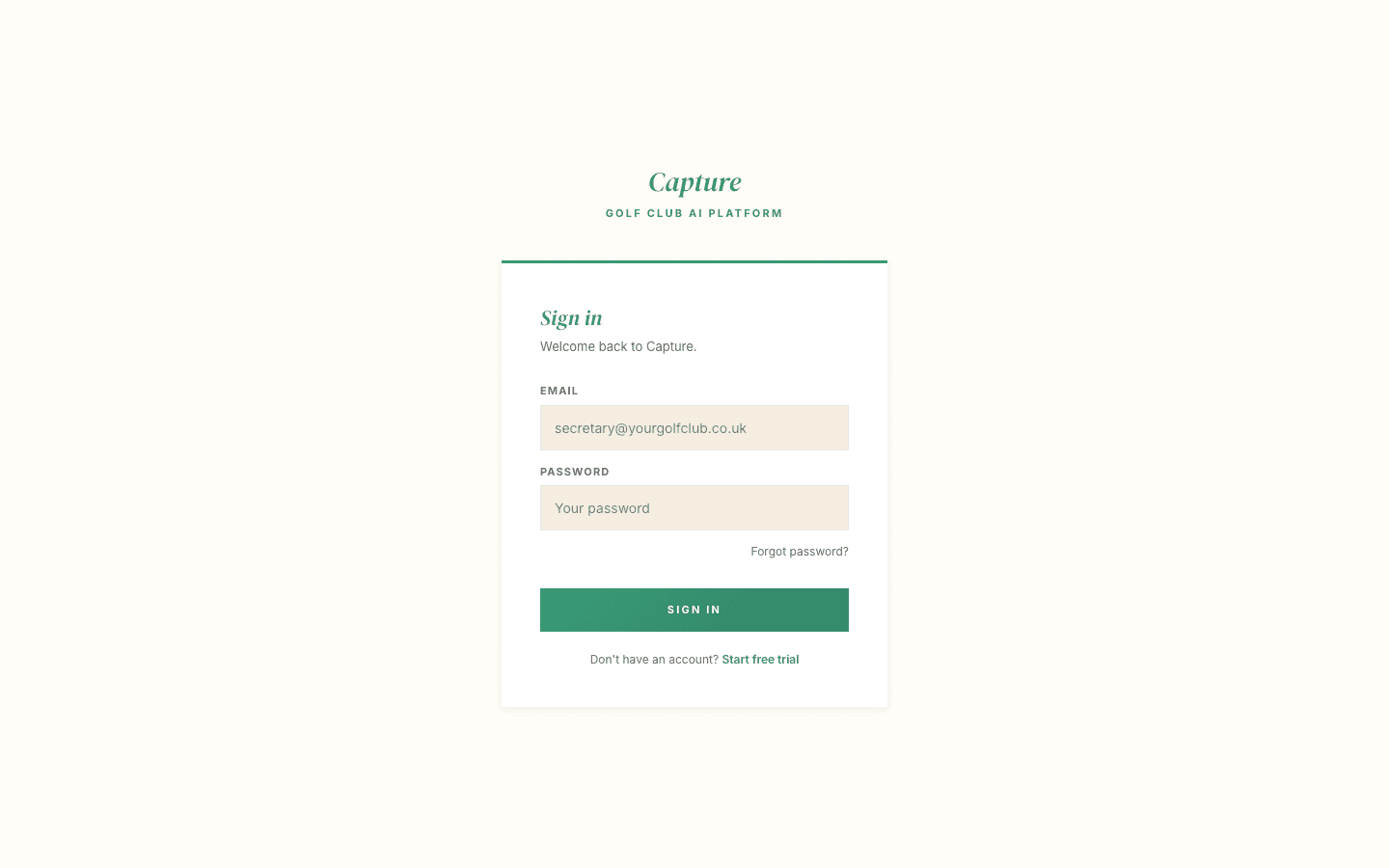
Your dashboard is at chat.crm.golf/login, using the email address your account was set up with.
Setting your password for the first time
- Go to chat.crm.golf/login
- Click Forgot password? underneath the sign-in button
- Enter your club's account email address
- Open the email that arrives and choose your password
The link works once
The link in that email is valid for 24 hours, so there is no rush, but it can only be used once. If it says it has expired, request a fresh one from the same Forgot password link.
The dashboard
Once you are in, the first thing you see is an overview of what your concierge has been doing: how many conversations it has had, how many turned into enquiries, and which areas of the club people are asking about.
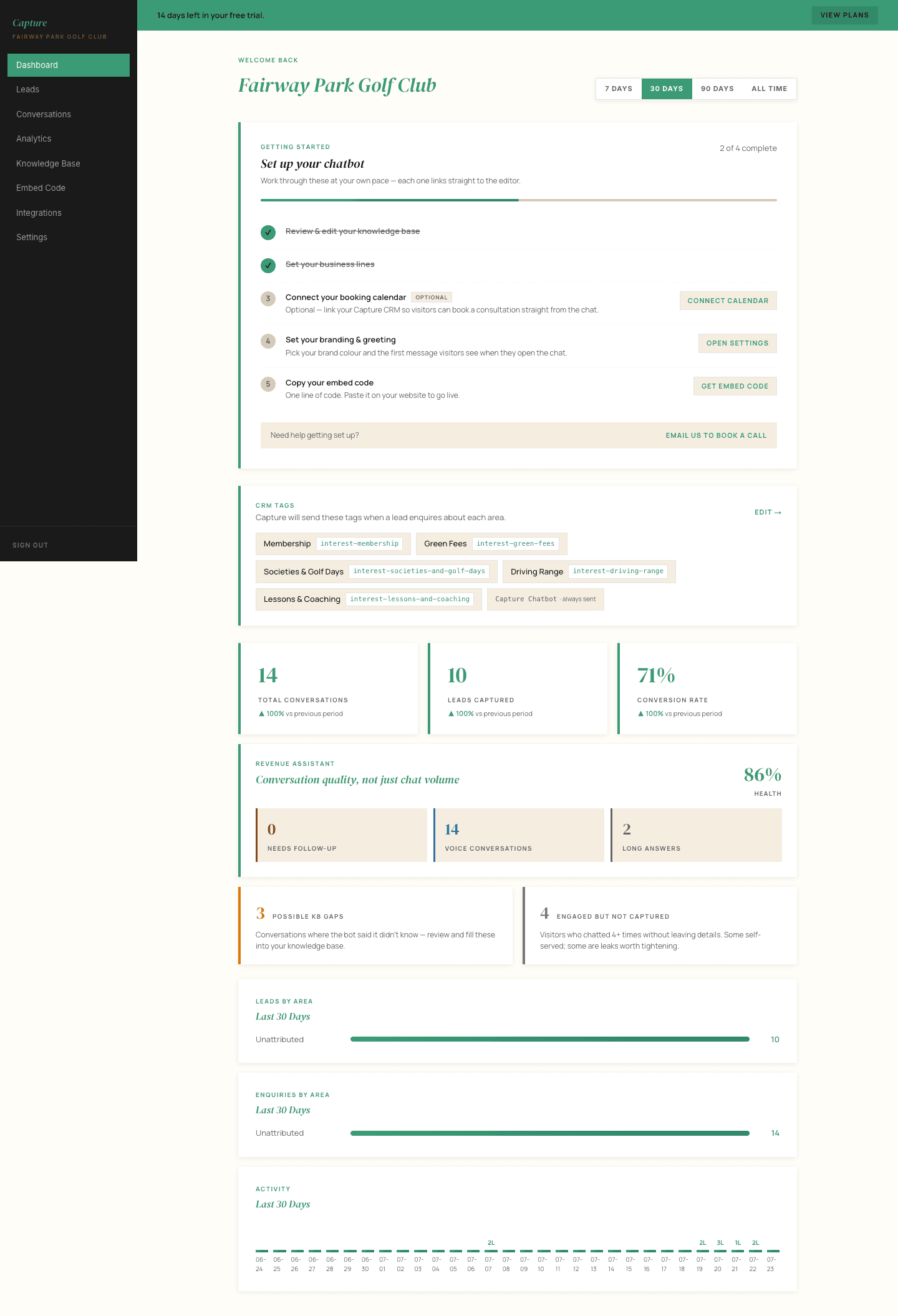
Everything else is reached from the dark menu down the left-hand side.
The Getting started panel at the top tracks the few setup steps that matter, including your brand colour and the greeting visitors see when the chat opens. Both are covered in Settings and Branding.
If more than one person needs access
Each club account has one login. If several people need to get in, share the account email address and password between them, or ask us to change the account email to a shared club inbox.