
Text Snippets
What are Text Snippets?
Text Snippets are saved blocks of text you can insert into any email or SMS message with a single click -- in conversations, campaigns, and automated workflows.
Instead of typing the same reply from scratch every time, your team saves it once and pulls it in whenever needed. Every message goes out correctly worded, consistently branded, and faster than typing by hand.
The most common use case: your team gets the same types of enquiries every week (societies, weddings, membership, green fees). Rather than copying and pasting from an old email -- and occasionally sending the wrong thing -- you save those replies as snippets and insert them in seconds.
Snippets support dynamic content so even a pre-written message can feel personal. {{contact.first_name}} is automatically replaced with the contact's actual first name when the message is sent.
Key Benefits
- Save time -- write it once, reuse it endlessly
- Keep messaging consistent -- everyone on your team uses the same approved wording
- Personalise at scale --
{{contact.first_name}}and other dynamic fields fill in automatically - Reduce errors -- no more copy-paste mistakes or sending the wrong template
- Works alongside your Outlook -- emails sent via Capture sync with your connected Outlook account (see below)
How Snippets Fit Into Your Email Workflow
When you connect your Outlook account to Capture, emails you send from a contact record go out through your Outlook address and also appear inside Capture. If the contact replies, that reply lands in both your Outlook inbox and the Capture conversation thread -- so nothing gets missed regardless of where you're working.
Snippets slot into this workflow naturally. When you're in a contact record and you want to follow up on an enquiry, you:
- Click to compose an email
- Select a snippet (e.g. "Society enquiry follow-up")
- The text inserts into the message body -- edit if needed
- Click Send -- the email goes from your Outlook address and is logged in Capture
The recommended approach for most enquiries:
- Automated confirmation -- when someone submits a form, they immediately receive an automated email to say their enquiry has been received. This is set up in your workflow and goes out within seconds.
- Personal follow-up via snippet -- within 24 hours, a team member opens the contact record, selects the relevant snippet, adds any specific details, and sends. This comes from their connected Outlook address and feels personal.
This two-step approach means every enquiry gets an instant acknowledgement and a proper personal response -- without anyone typing the same information over and over.
Setting Up Text Snippets
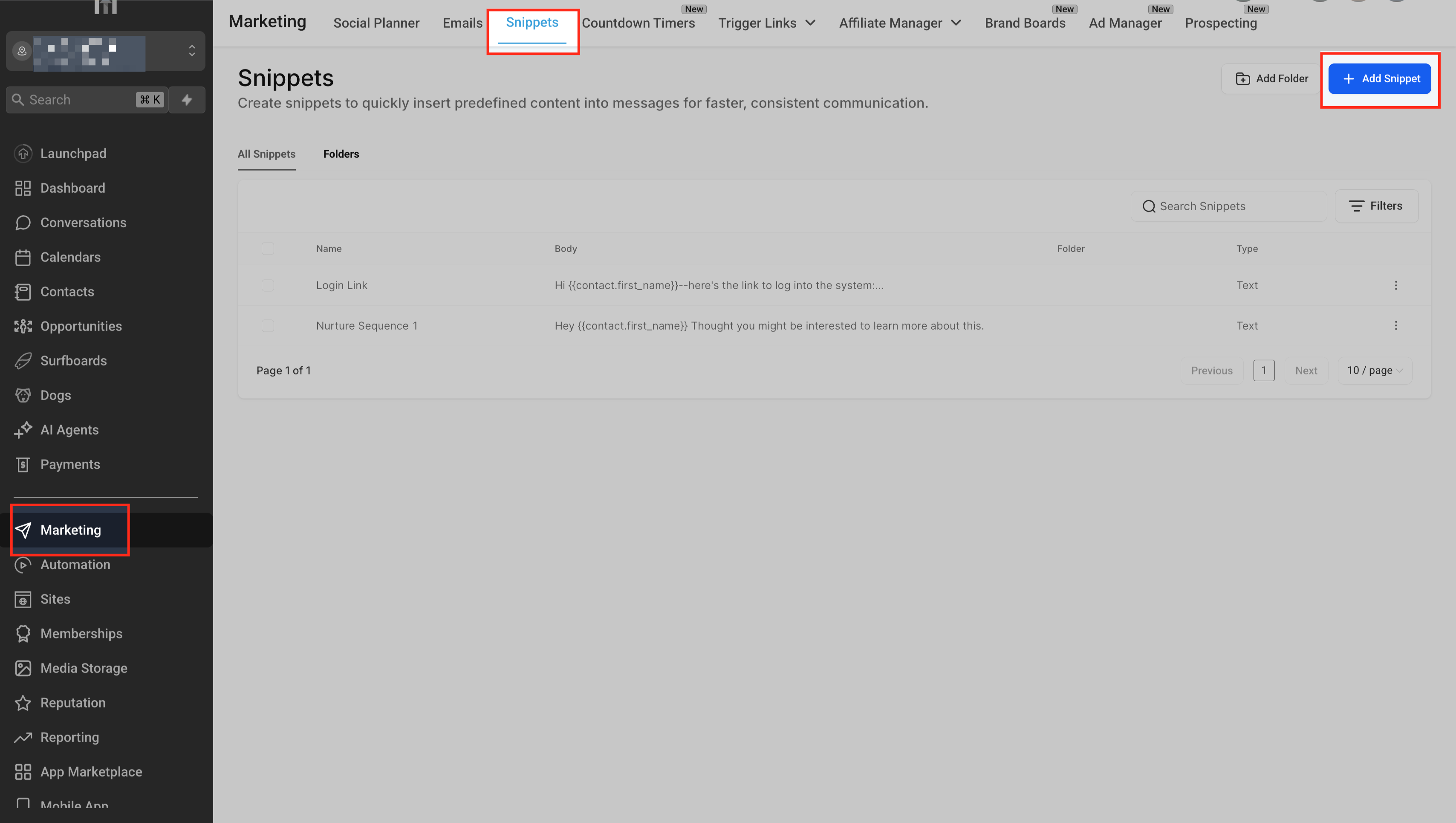
1. Navigate to Snippets
Go to Marketing > Snippets in the left-hand navigation menu.
2. Create a New Snippet
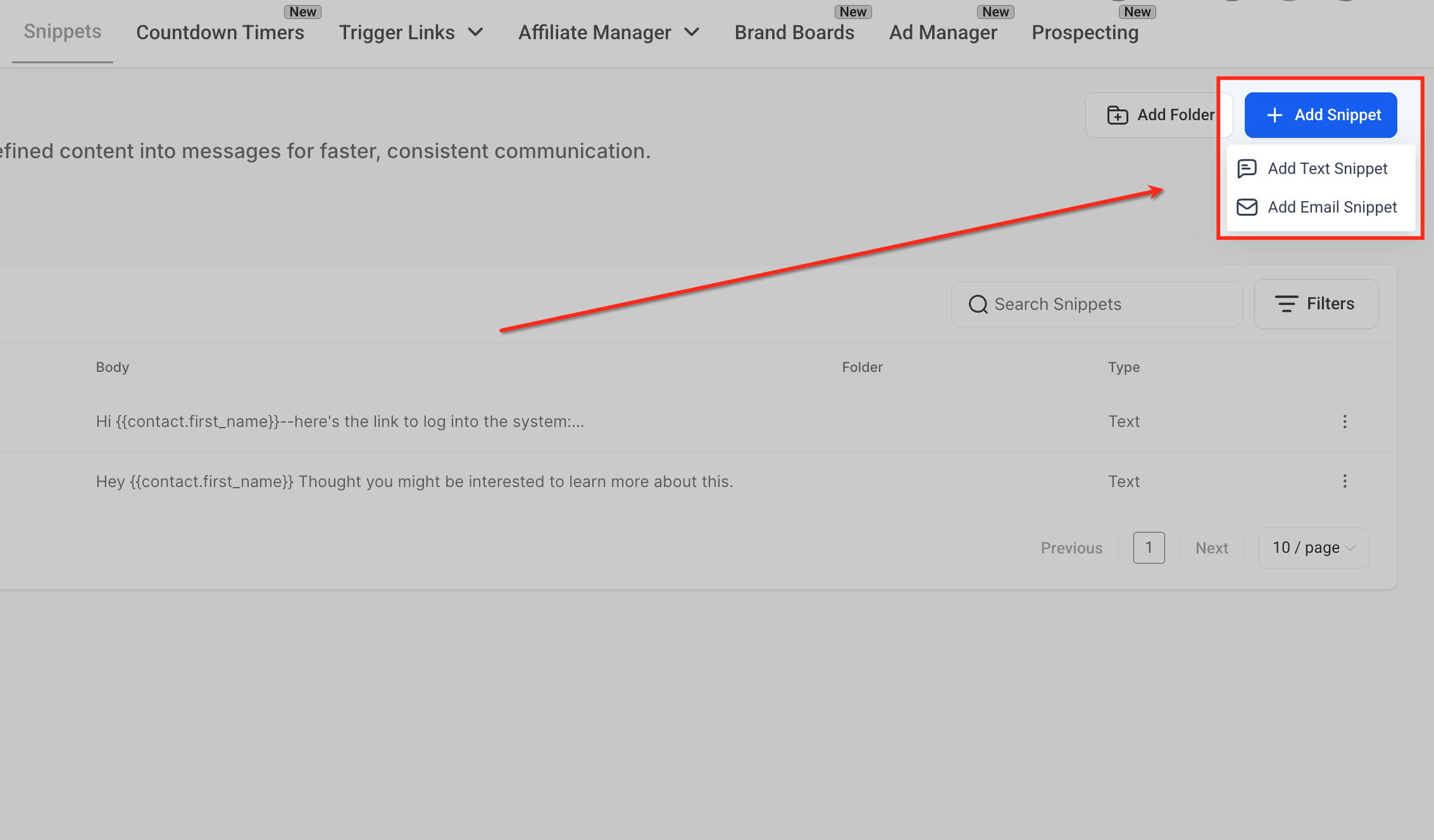
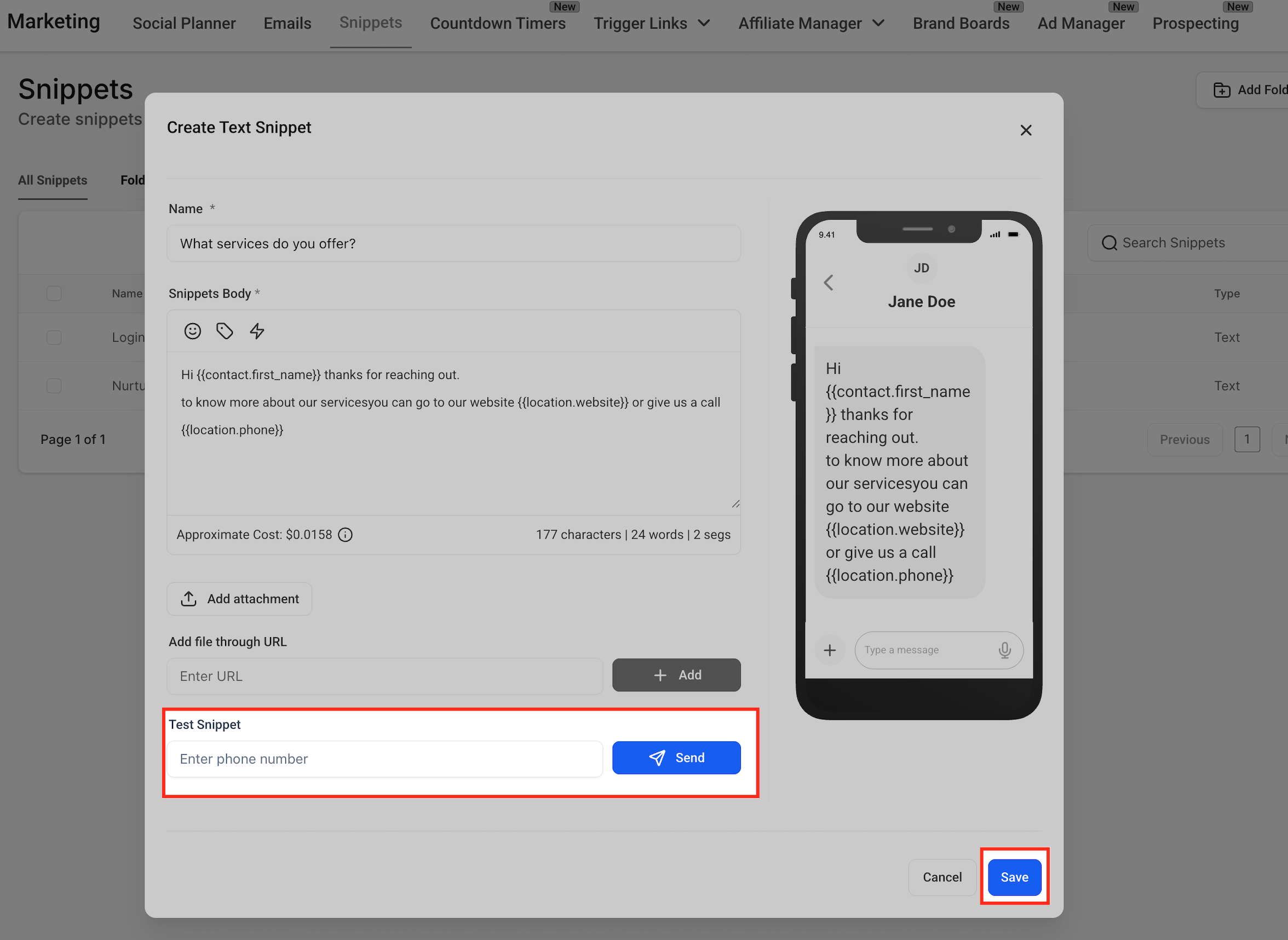
Click + Add Snippet to open the snippet creation panel.
You'll need to fill in:
- Name -- a clear label so your team can find it quickly (see naming conventions below)
- Body -- the text of the snippet. You can format text and include dynamic fields.
- Attachments (optional) -- PDFs only. See How Attachments Work below.
3. Name and Preview Your Snippet
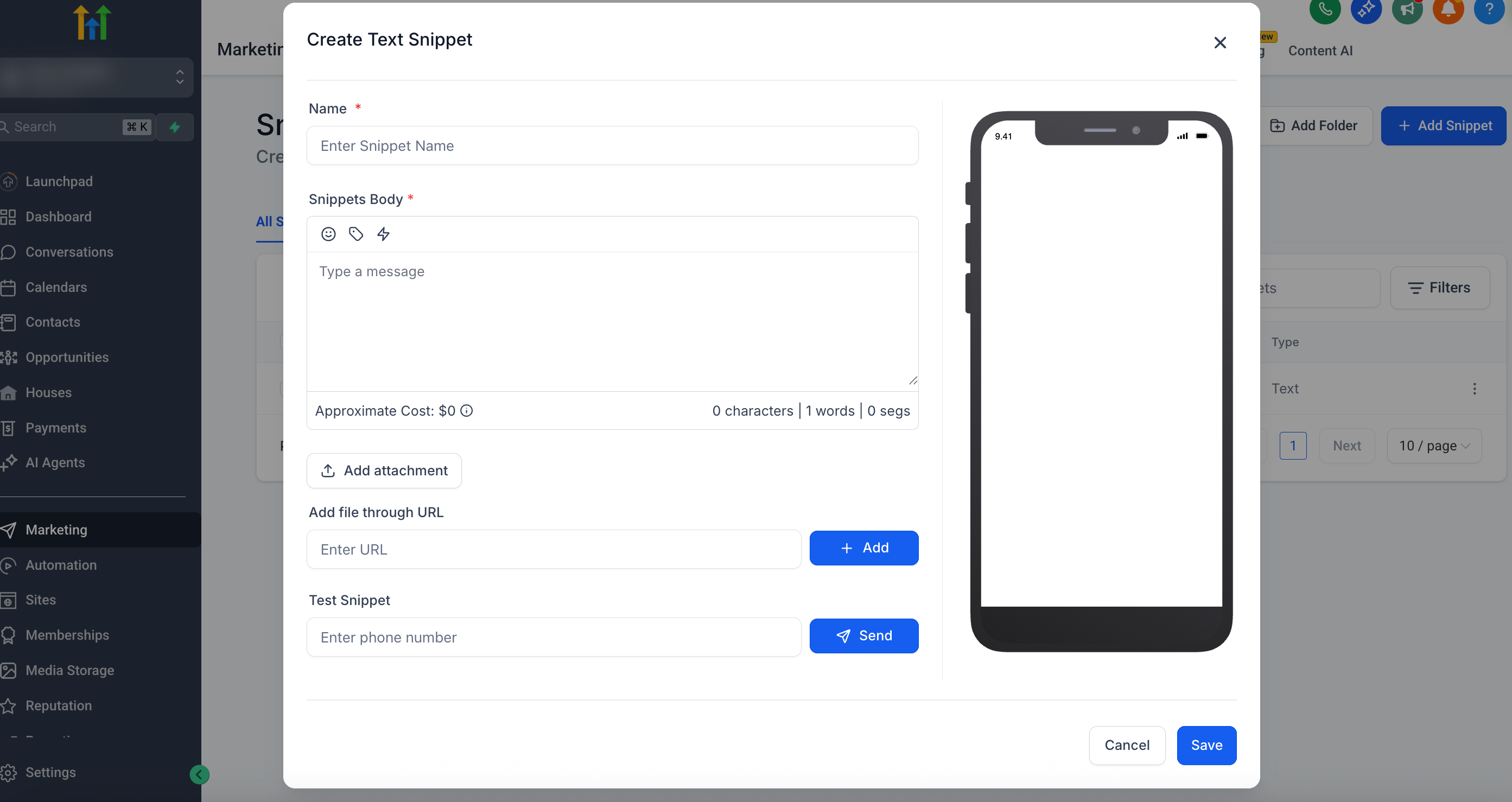
Name your snippet so it's immediately obvious what it's for. Vague names like "Response 1" cause confusion; specific names like "Society enquiry -- initial follow-up" make it easy to find the right one quickly.
The mobile preview on the right shows exactly how the message will appear to the recipient before you save.
4. Add Dynamic Content
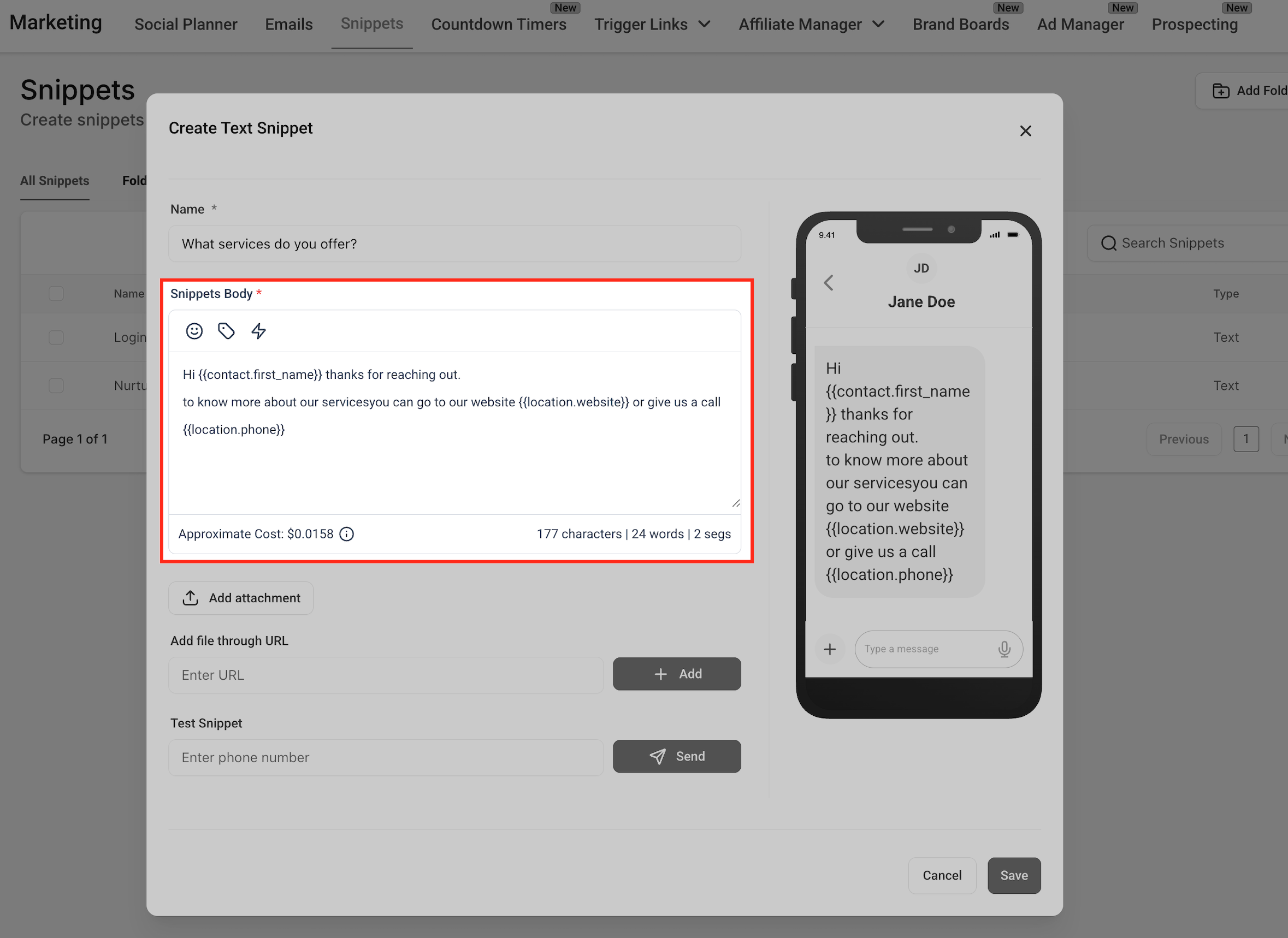
Use Custom Values to personalise your snippets automatically. The most common ones:
{{contact.first_name}}-- replaced with the contact's first name when sent (e.g. "Hi James"){{contact.last_name}}-- their surname{{contact.email}}-- their email address- Any custom value you've set up (e.g. a brochure URL -- see below)
The live preview updates as you add these to show how the finished message will look.
5. Test and Save
Enter a mobile number and click Send Test to see the snippet as a real message before saving. Worth doing for any new snippet, especially those with dynamic fields.
For SMS snippets, keep an eye on the character count. Messages over 160 characters split into multiple segments, each billed separately.
Click Save when you're happy.
Using Snippets in Conversations
Snippets are available in any conversation -- email or SMS.
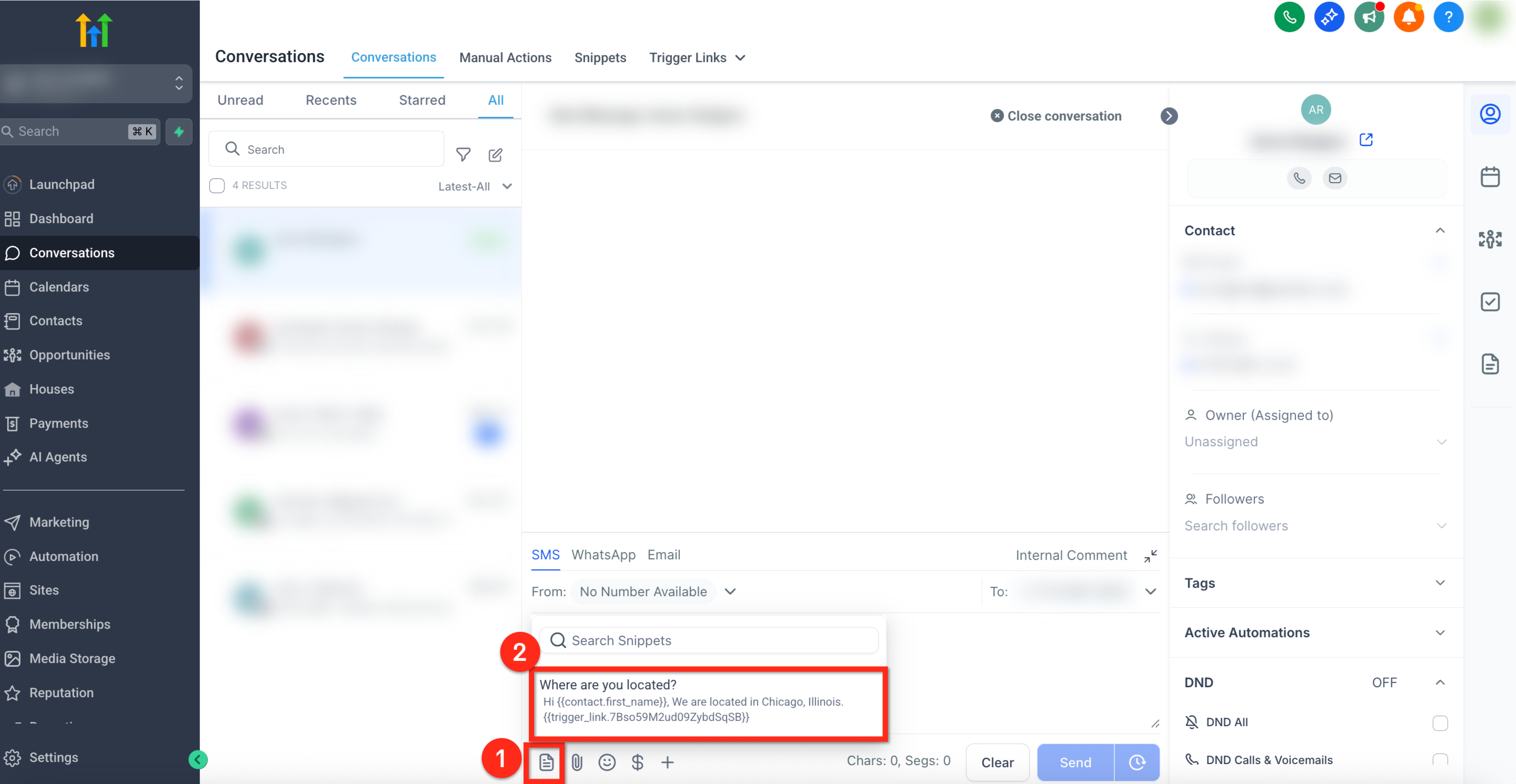
- Open a conversation in the Conversations tab (or go to a contact record and click to compose an email)
- Click the Snippets icon in the message toolbar
- Search for the snippet by name
- Click it to insert the text into the message field
- Edit as needed before sending
How it looks when sent
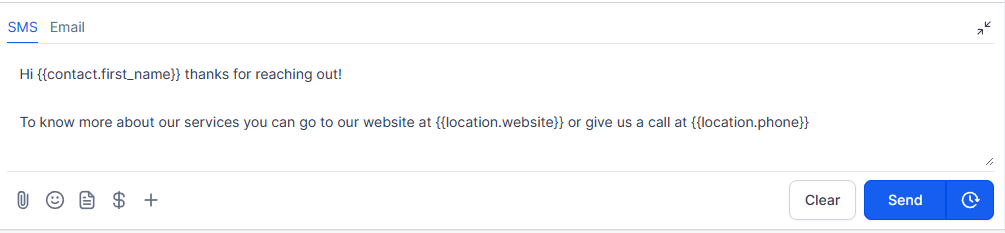
Once sent, the dynamic placeholders are replaced with the contact's actual details. The recipient receives a natural, personal message.
Snippets for Golf Clubs: Practical Examples
Here are the most useful snippets to set up for a typical golf club. Organise them with a prefix by enquiry type so your team can find the right one instantly.
Society & Group Golf
Society enquiry -- initial follow-up
Hi {{contact.first_name}},

Thank you for your enquiry about a society day at [Club Name].

I'd love to tell you more about what we can offer. We have a fantastic course and a range of packages to suit different group sizes and budgets.

Could you let me know roughly how many players you're looking at and whether you have any dates in mind? I'll then put together some options for you.

Looking forward to hearing from you.
Society enquiry -- package details Create a version of this with your specific society packages, green fee rates, meal options, and any current offers.
Weddings & Functions
Wedding enquiry -- initial response
Hi {{contact.first_name}},

Thank you for getting in touch about holding your wedding at [Club Name] -- it's a wonderful choice and we'd love to help make it a special day.

I've attached our functions pack which includes room hire rates, catering options, and some example menus. I'll follow this up with a call to find out more about what you have in mind and answer any questions.

In the meantime, please don't hesitate to reply if there's anything I can help with.
Events / functions -- room hire and catering info Create a snippet with your current room hire rates, example menus, and any standard package information. Update this whenever your pricing changes.
Membership
Membership enquiry -- follow-up
Hi {{contact.first_name}},

Thanks for your interest in membership at [Club Name].

I wanted to follow up personally to see if you had any questions about what we offer, or if you'd like to come in for a look around. There's no better way to get a feel for the club.

I'd be happy to arrange a time that suits you -- just reply to this email or give us a call.
Green Fees
Green fee enquiry -- response
Hi {{contact.first_name}},

Thanks for getting in touch about green fees at [Club Name].

[Include your current rates, booking process, and any relevant information about the course or visitor policy here]

If you'd like to book or have any questions, just reply to this email.

We hope to see you on the course soon.
Using Custom Values for Brochures and Documents
Rather than attaching a PDF to every snippet (and having to update each snippet when the document changes), you can use a Custom Value to store the document URL. For example:
- Set up a custom value called
Wedding Brochure URLpointing to your brochure link - In your snippet, insert that custom value:
{{custom_values.wedding_brochure_url}} - When the snippet is sent, the link is automatically pulled in
The benefit: when you update your brochure, you only change the URL in one place (the custom value) -- not in every snippet that references it. This is much easier to manage as your snippet library grows.
Your Capture team can help you set up custom values for your key documents.
Managing Your Snippets
Go to Marketing > Snippets at any time to edit, rename, or delete snippets.
Naming conventions
Use a consistent prefix by enquiry type so the list stays easy to navigate:
| Prefix | Examples |
|---|---|
Society -- | Society enquiry, Society follow-up, Society package info |
Wedding -- | Wedding initial response, Wedding catering, Wedding venue hire |
Events -- | Events / functions initial, Room hire rates |
Membership -- | Membership follow-up, Membership brochure, Membership pricing |
Green Fees -- | Green fee rates, Visitor booking info |
Keeping snippets up to date
- Review pricing and package snippets whenever rates change
- Archive outdated snippets rather than leaving them in the list
- Assign one person to own snippet maintenance so nothing goes stale
Using Snippets in Workflows (Automations)
Snippets can be used inside automated workflows, useful for building out follow-up sequences.
Step 1: Open a Workflow
Go to Automations > Workflows and open an existing workflow or create a new one.
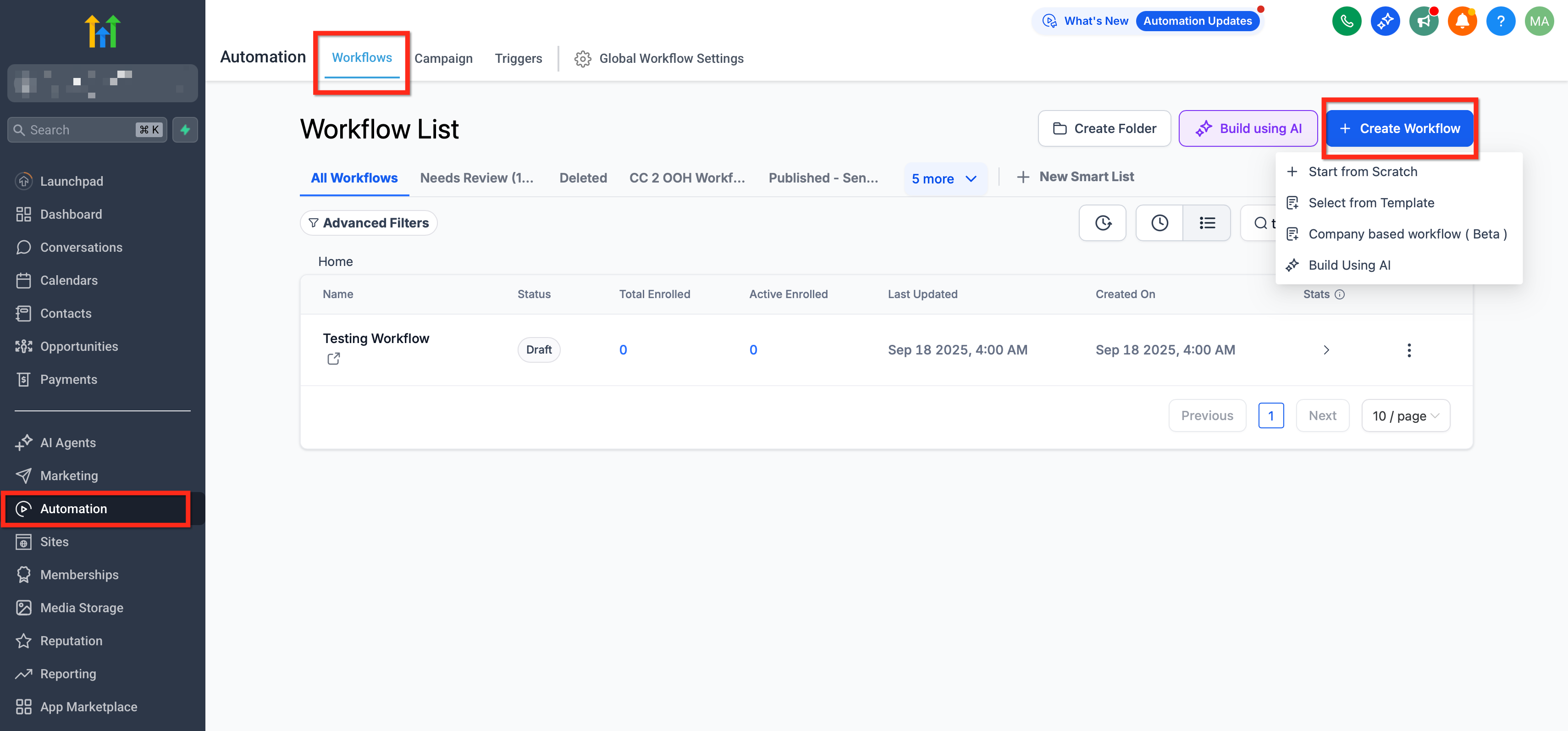
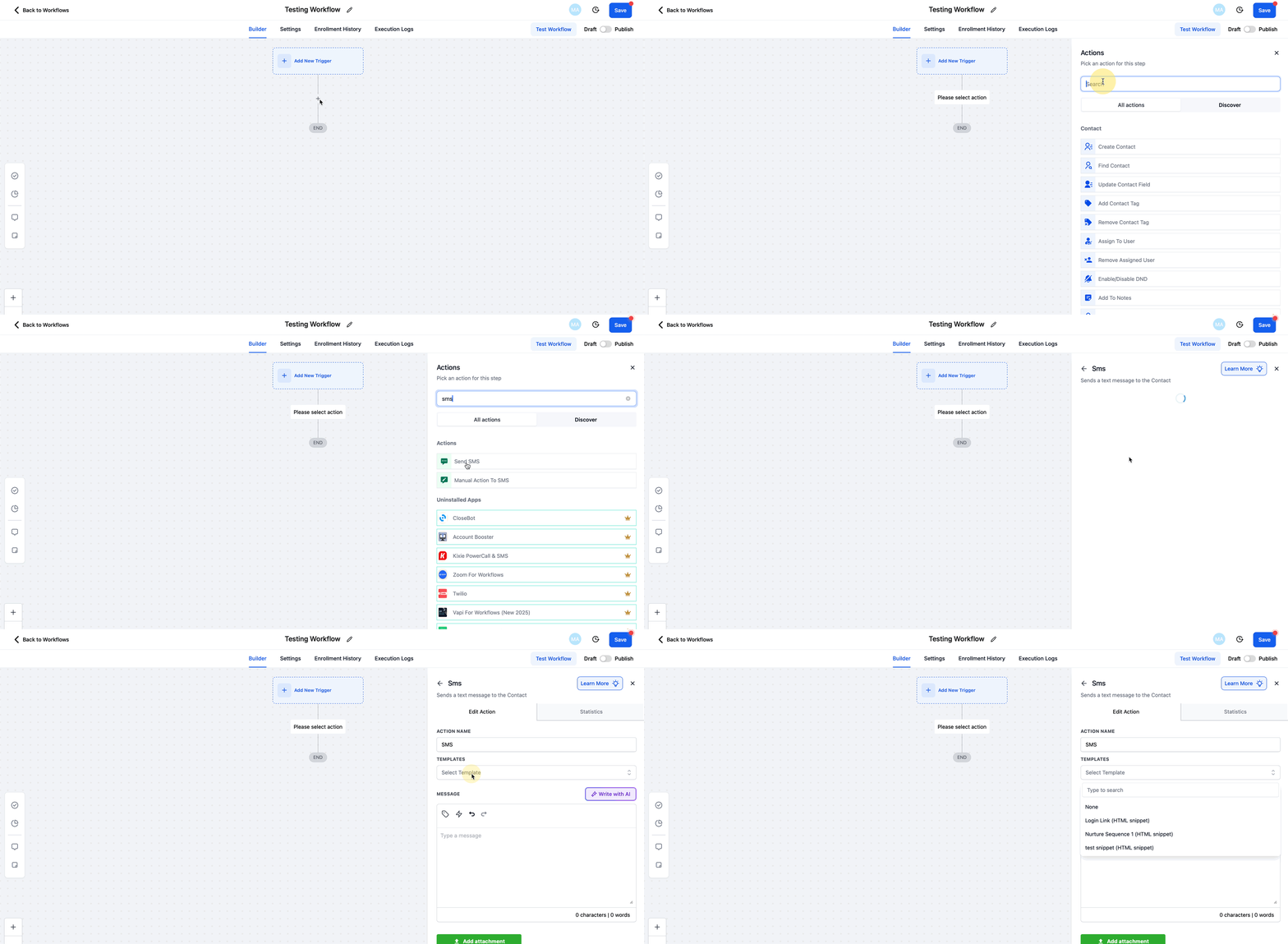
Step 2: Add a Messaging Action
Add a Send SMS or Send Email action. Inside the action panel, click Templates to see a dropdown of all your saved snippets.
Step 3: Select Your Snippet
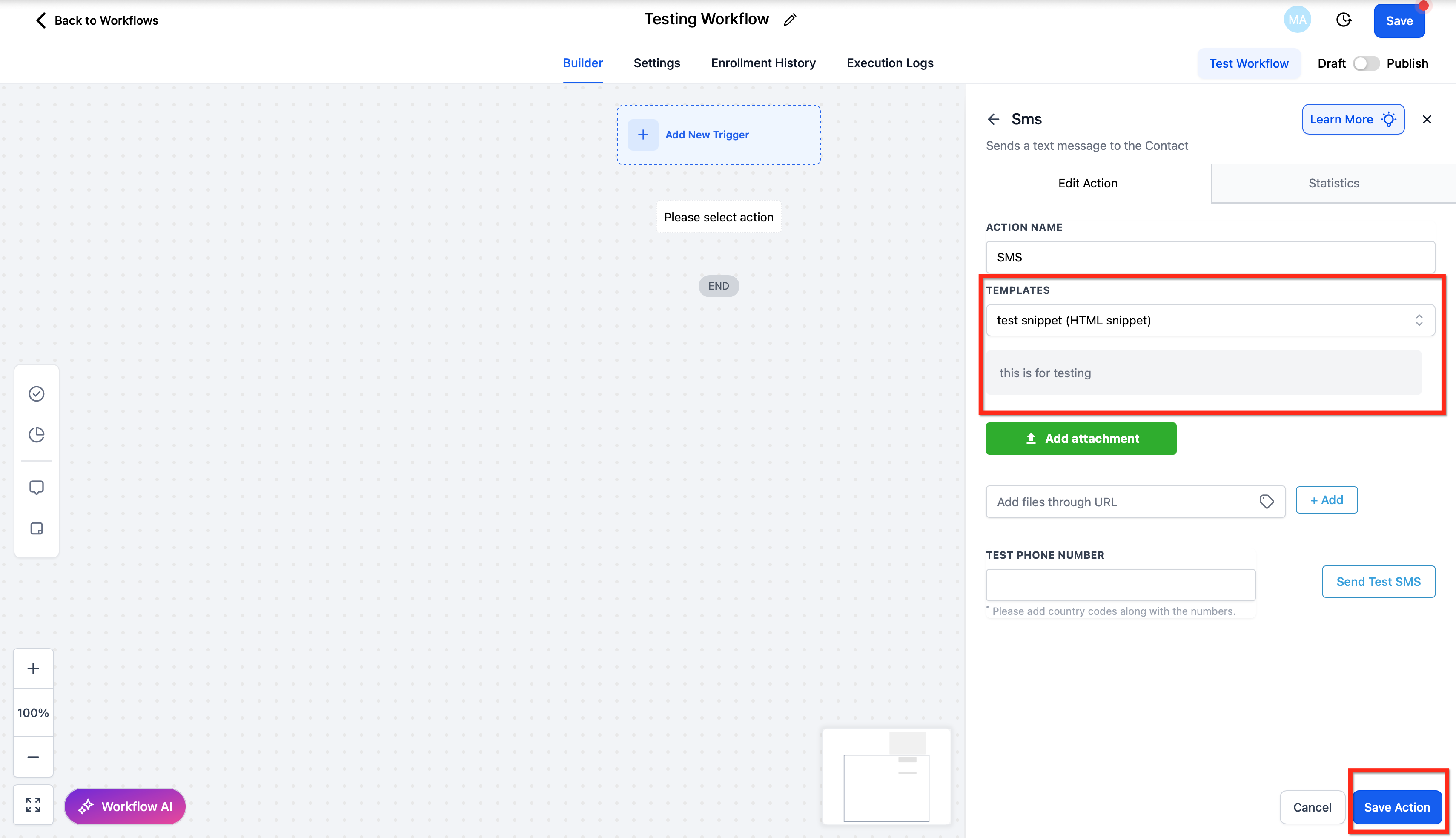
Click the snippet you want to use. The text inserts directly into the message body. You can edit it within the action before saving.
How Attachments Work
Snippets support PDF attachments only. Other file formats (Word documents, images, etc.) are not supported as snippet attachments.
How attachments behave depends on where you use the snippet:
| Where used | Attachments included? |
|---|---|
| Conversation (email) | Yes -- the PDF sends with the message |
| Campaign email | Yes -- PDFs are automatically included |
| Email template | No -- only the text content inserts; PDFs are not carried over |
| Workflow (email or SMS) | No -- PDFs are not automatically added in workflow actions |
If you need to include a document in a workflow email, add it manually to the workflow action itself. Or use a Custom Value URL (see above) so the recipient receives a link to the document rather than an attachment.
Frequently Asked Questions
Can I use snippets in both email and SMS? Yes. Snippets are available in any conversation or workflow action that has a message editor -- email, SMS, and campaign emails.
Does {{contact.first_name}} work in all snippets?
Yes. Any Custom Value or merge field you include in a snippet will be automatically replaced with the contact's actual data when the message is sent. If the contact's first name is missing, that field will render blank -- so it's worth keeping your contact records complete.
Can I organise snippets into folders? Yes. You can create folders to keep your snippet library organised. This is particularly useful once you have ten or more snippets across different enquiry types.
Is there a limit to how many snippets I can save? There is no published limit on the number of snippets you can create.
Who can create and edit snippets? This depends on the user role and permissions set up in your account. If you cannot see the Snippets section, check with your account admin.
What file types can I attach to a snippet? PDFs only. Other file formats are not supported as snippet attachments.
Will using snippets affect email deliverability? No. Snippets have no impact on email deliverability, provided the content follows good practices (no spam trigger words, proper links, etc.).
Do workflow snippets include PDF attachments? No. PDF attachments linked to a snippet are not automatically included when the snippet is used in a workflow. Add attachments manually to the workflow action, or use a Custom Value URL to link to the document instead.