
Do Not Disturb (DND)
What Do Not Disturb Does
Do Not Disturb (DND) tells Capture to stop sending messages to a contact. When DND is switched on for a channel, that contact is skipped by any email, SMS, call, or automation that would normally reach them on that channel.
It works per contact, and you can apply it either to every channel at once or to individual channels — so you can, for example, stop emailing someone while still being able to text them.
Why this matters: DND is how you honour an opt-out without deleting the contact. If a member asks you to stop emailing them, you switch on Email DND and keep the rest of their record — history, tags, opportunities — fully intact. They're still in your database; Capture just won't message them on that channel.
When You'd Use It
- A member or prospect asks to stop receiving emails, texts, or calls
- Someone replies "STOP" to a text or unsubscribes from an email (this happens automatically — see below)
- You want to pause all outreach to a contact while a complaint or dispute is being resolved
- You're cleaning up a record and want to make sure an automation never messages a particular person
Where to Find It
- Go to Contacts and open the contact you want to change.
- In the Contact Details panel on the left, click the DND tab (it sits between All fields and Actions).
You'll see the DND controls: a single DND All Channels switch at the top, then an OR divider, then the individual channels underneath.
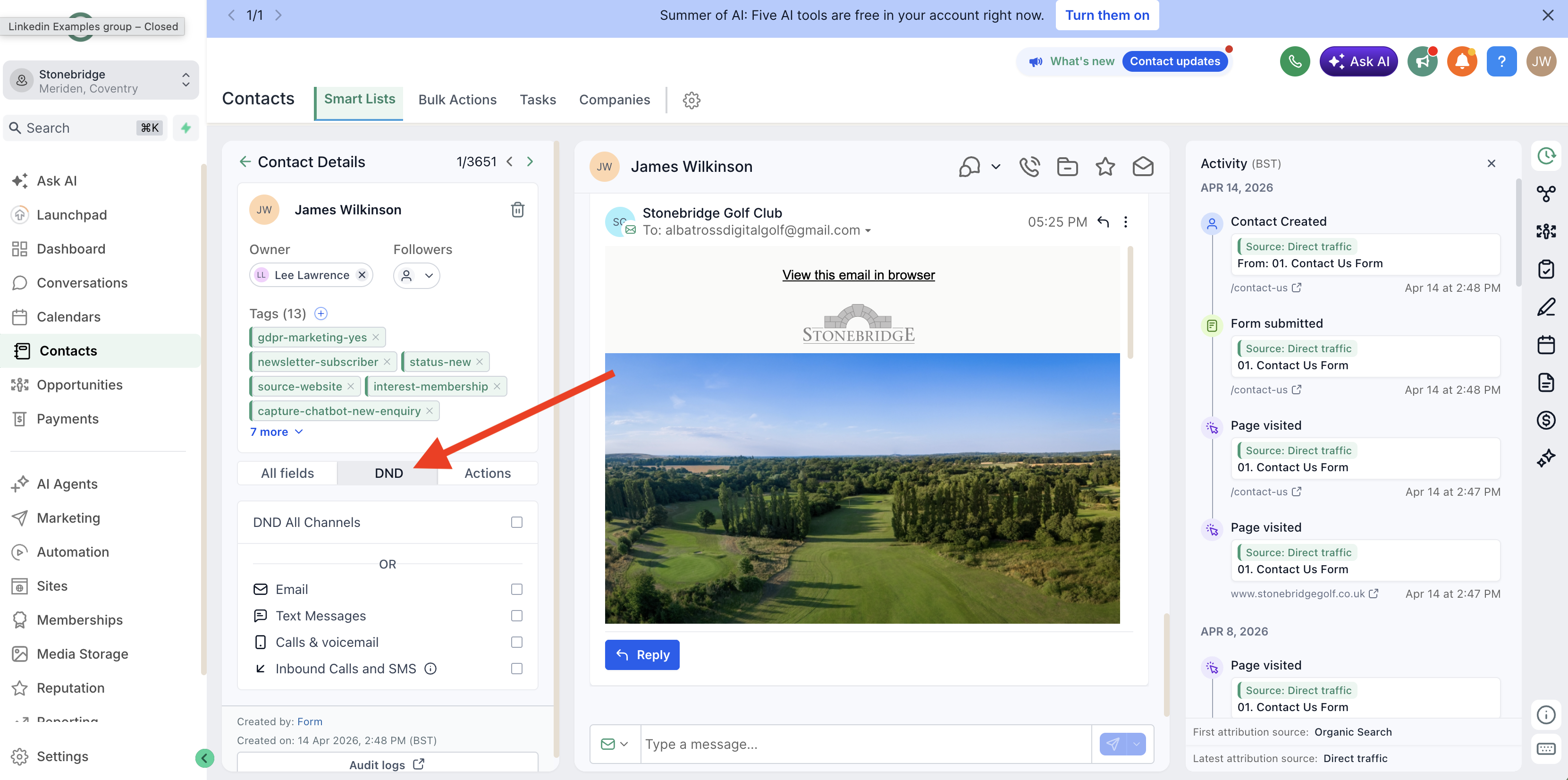
Option 1 — Turn Off Every Channel
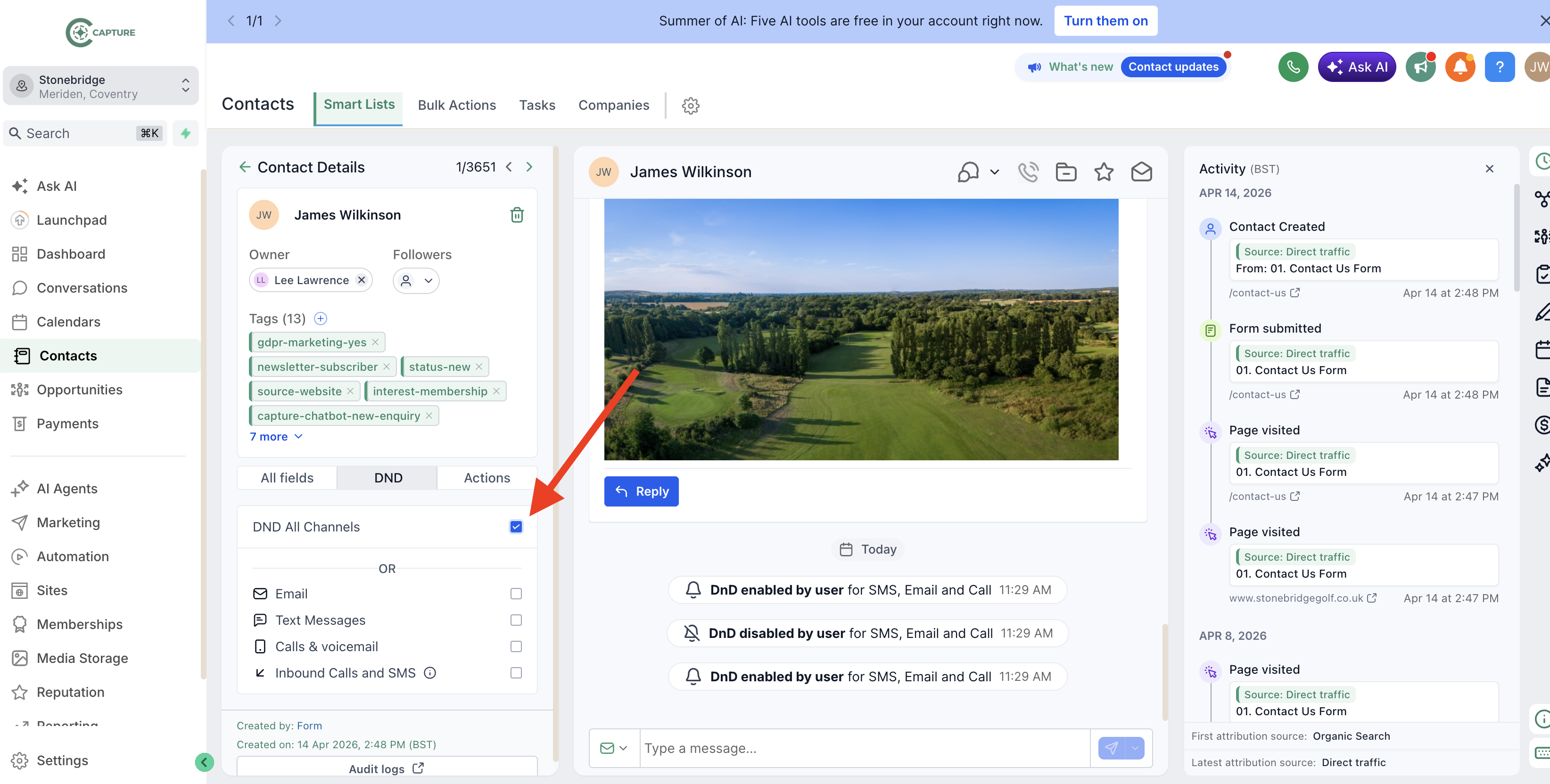
Tick DND All Channels to stop Capture contacting this person on every channel — email, text, and calls all at once.
This is the quickest way to silence all outreach to a contact. Use it when someone wants to go completely quiet.
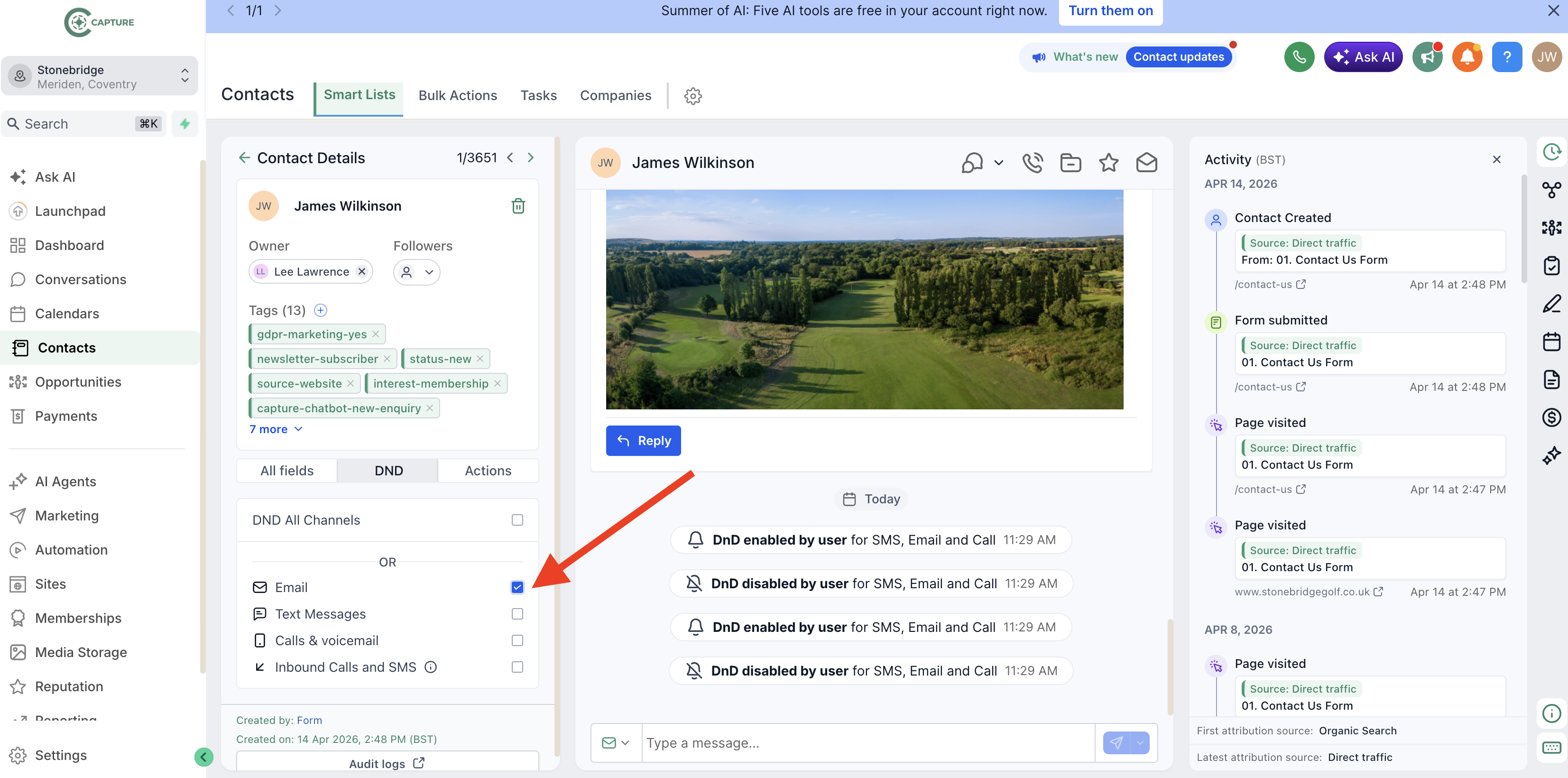
Option 2 — Turn Off Specific Channels
If you only want to block one or two channels, leave DND All Channels unticked and use the individual checkboxes instead. The OR divider is the clue: it's all channels, or the specific ones you choose below.
For example, tick Email on its own to stop emails while still allowing texts and calls.
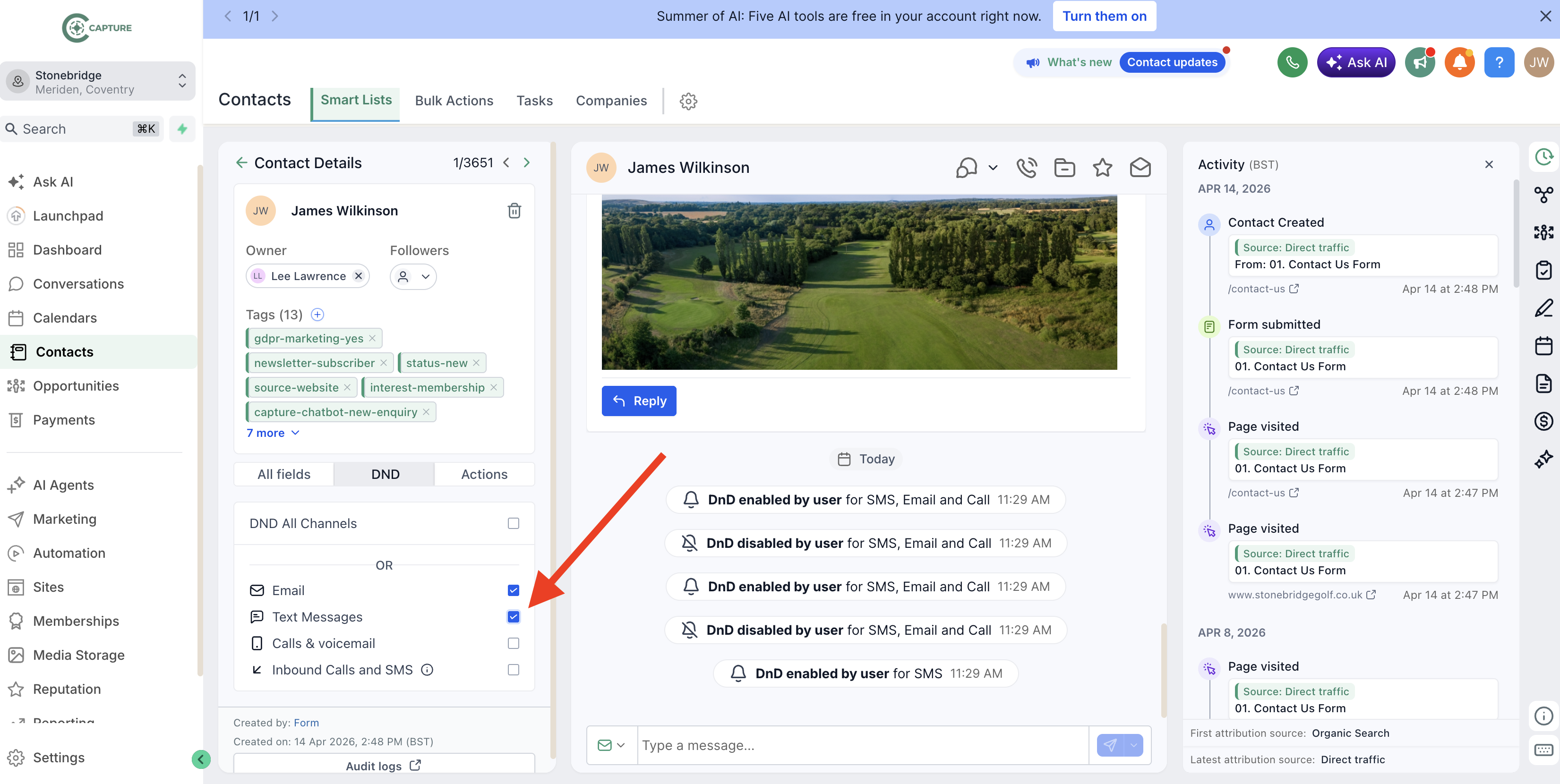
You can tick as many as you need. Here, both Email and Text Messages are switched off, but calls are still allowed:
What each channel covers
| Channel | What it blocks |
|---|---|
| All outbound emails — campaigns, automations, and one-to-one replies | |
| Text Messages | All outbound SMS |
| Calls & voicemail | Outbound calls and ringless voicemail drops |
| Inbound Calls and SMS | Stops inbound calls and texts from this contact reaching your inbox |
Changes save as soon as you tick or untick a box — there's no separate Save button.
How DND Affects Automations and Marketing
DND is respected everywhere Capture sends messages:
- Email campaigns and newsletters skip any contact with Email DND on.
- Workflows and automations skip the relevant step for any contact with DND on for that channel — the rest of the workflow still runs, it just won't message them.
- One-to-one messages are blocked too. If you try to email a contact who has Email DND on, Capture won't send it.
This means you can safely leave automations running. A contact on DND simply falls out of the messaging steps rather than receiving anything they've asked not to.
Automatic DND
Some DND is set for you, so you stay compliant without lifting a finger:
- A contact replies "STOP" to a text → Text Messages DND is switched on automatically.
- A contact unsubscribes from an email → Email DND is switched on automatically.
You don't need to do anything in these cases — but it's worth knowing that's why a contact might already show DND when you open their record.
Checking the DND History
Every time DND is switched on or off, Capture logs it on the contact's activity timeline in the centre panel — for example, "DnD enabled by user for SMS, Email and Call" with a timestamp. This gives you a clear audit trail of who changed what and when, which is useful if a contact ever queries whether they were opted out.
Turning DND Back Off
To start contacting someone again, open their DND tab and untick the relevant boxes — either DND All Channels, or the individual channels you'd previously switched on. The change takes effect immediately and is recorded on the activity timeline.
Compliance note: Only switch DND back off if the contact has genuinely asked to start hearing from you again. If someone unsubscribed or replied "STOP", don't re-enable that channel unless they've re-opted in. For more on opt-in and consent, see Data and Privacy and the compliance tags in Tags.