
Two-Way Email Sync
Two-way sync connects your personal email inbox to Capture so that customer email conversations are automatically tracked in both places. This page explains how it works, how to set it up, and what you need to know before you switch it on.
What is two-way sync and how does it work?
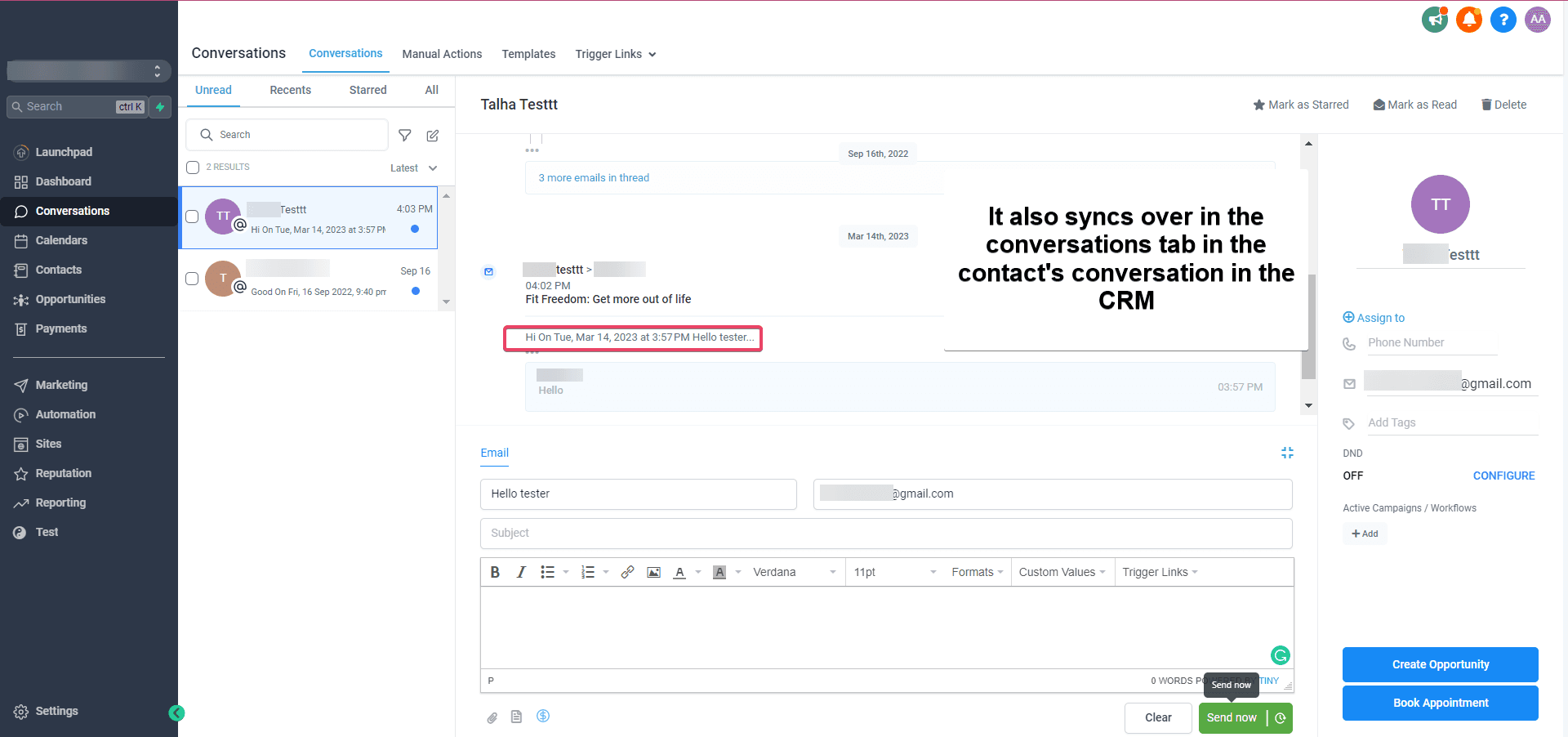
Two-way sync creates a live connection between your email inbox (Outlook or Gmail) and Capture. Once connected, emails flow in both directions.
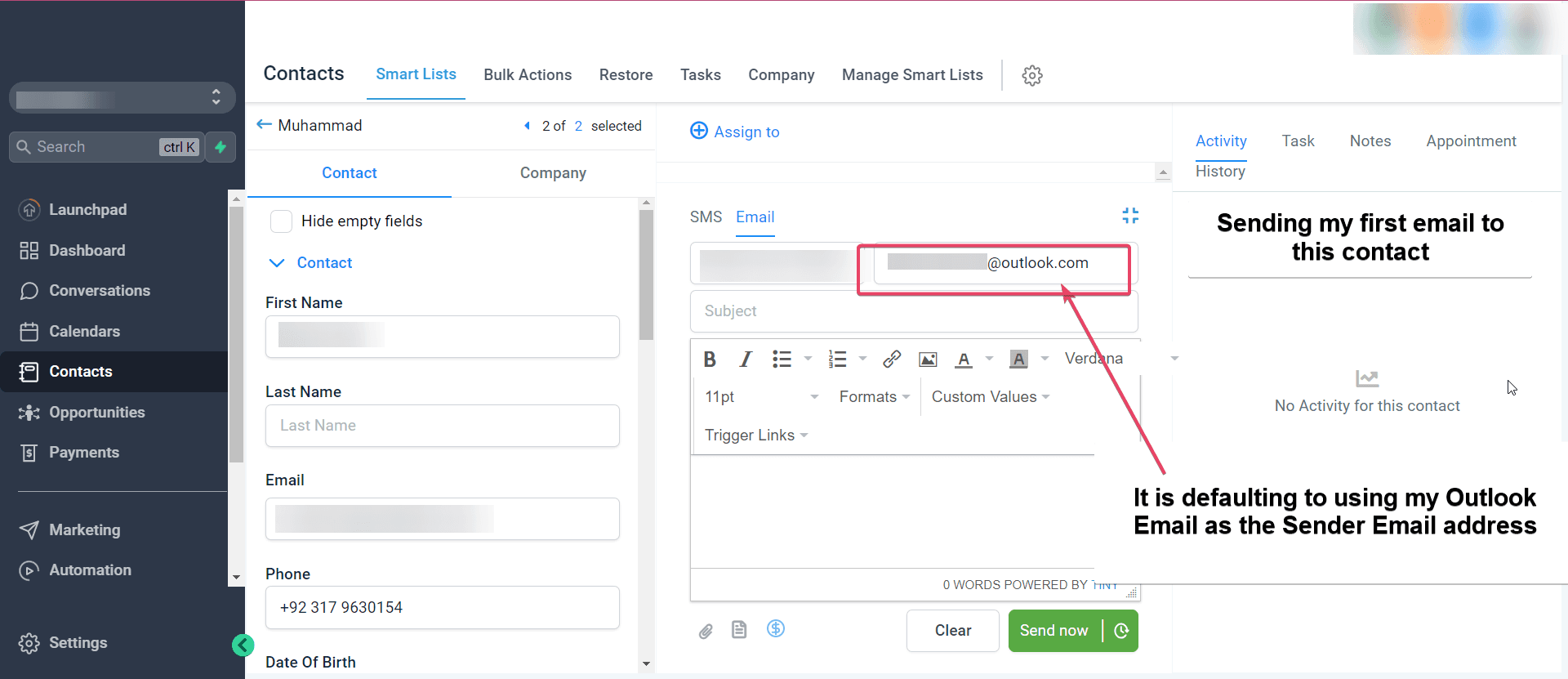
Outbound — sending from Capture: When you send an email to a contact from within Capture, that email is sent using your connected inbox address as the sender. The email also appears in your Sent folder in Outlook or Gmail, just as if you had sent it from there directly.
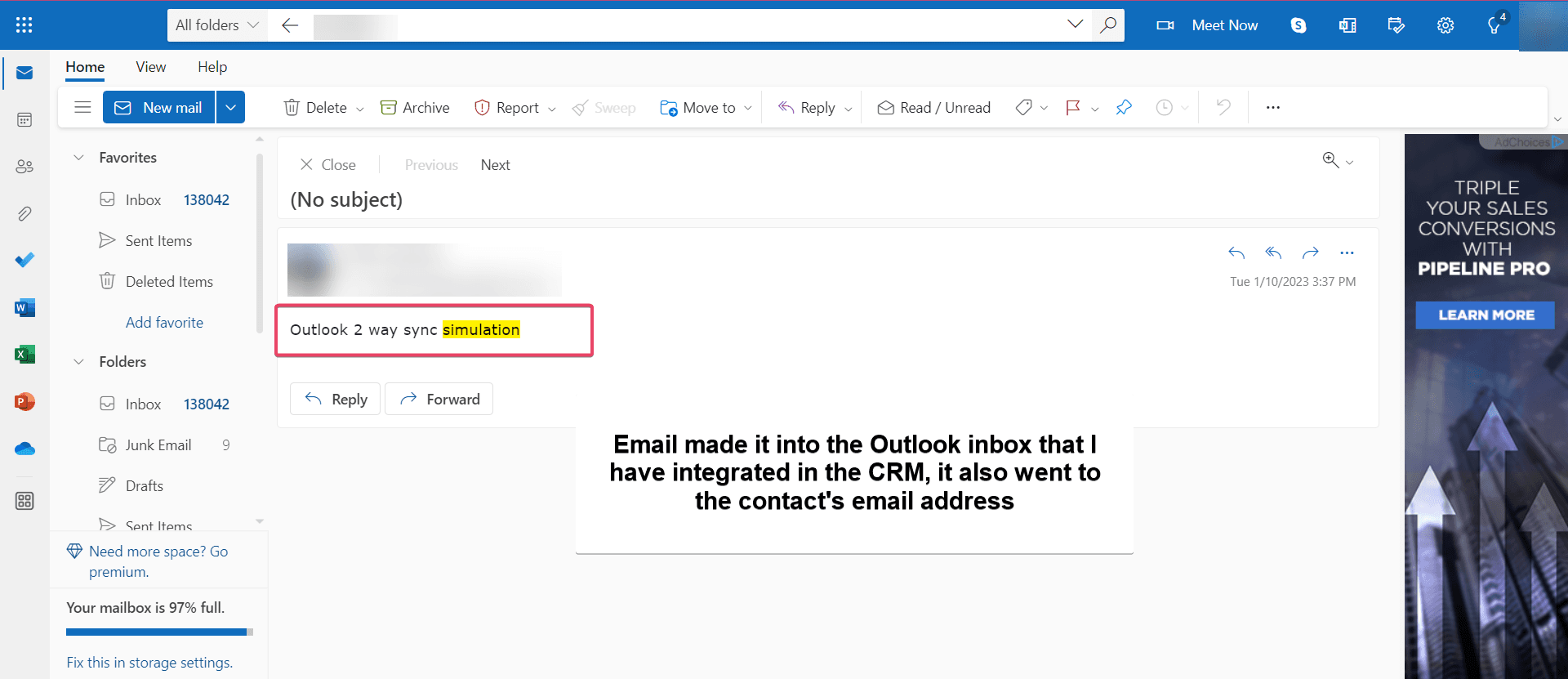
Inbound — receiving from contacts: When a contact emails your connected inbox, that email automatically pulls into the Conversations view in Capture against that contact's record. You see it in both places.
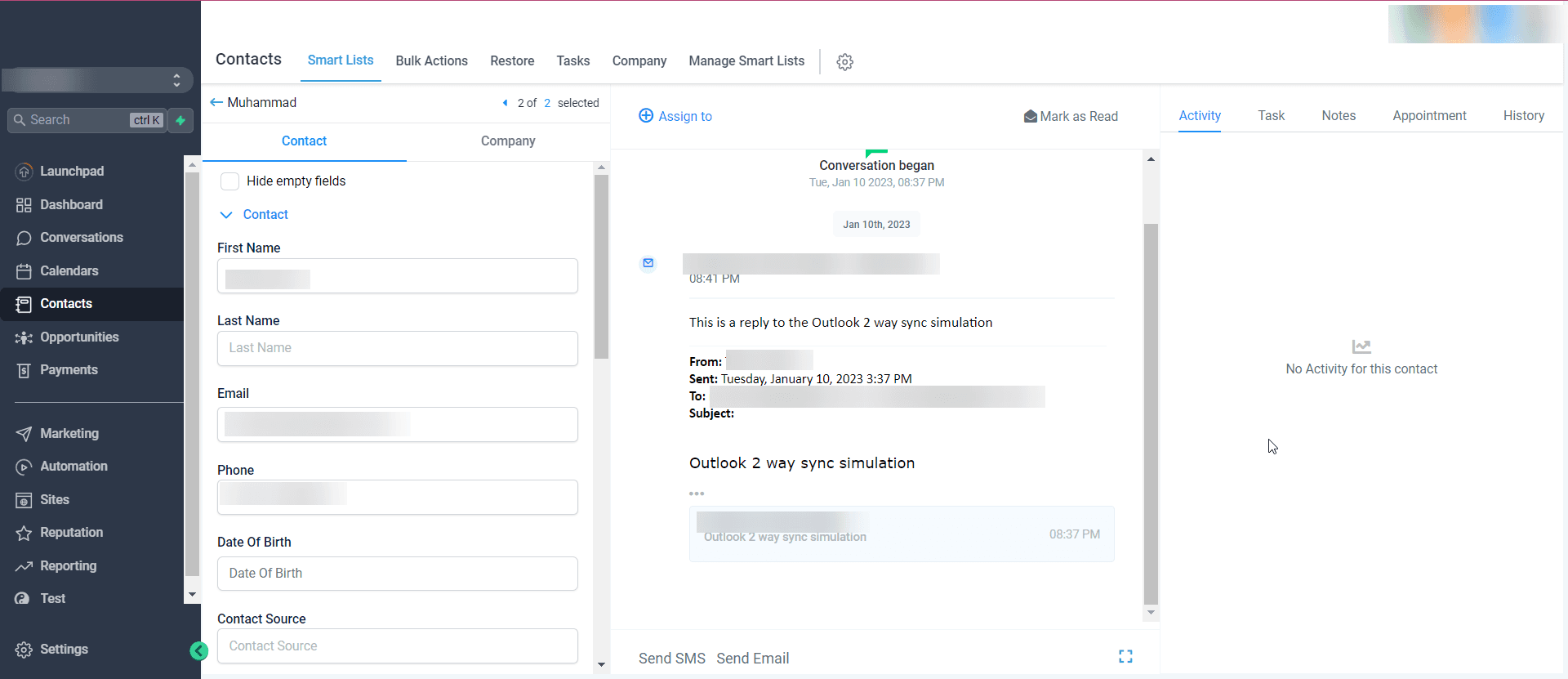
What gets synced: Capture only syncs emails from people who are already saved as contacts in the system. If someone is not a contact, their emails stay in your inbox and are never pulled into Capture.
Setting up Outlook two-way sync
The video below walks through the full setup process for both Outlook and Gmail.
Step 1: Navigate to Settings > My Profile
In Capture, click Settings, then click the My Profile tab. Scroll down to the Email (2-way sync) section, select Outlook, and click Connect.
Step 2: Sign in to your Microsoft account
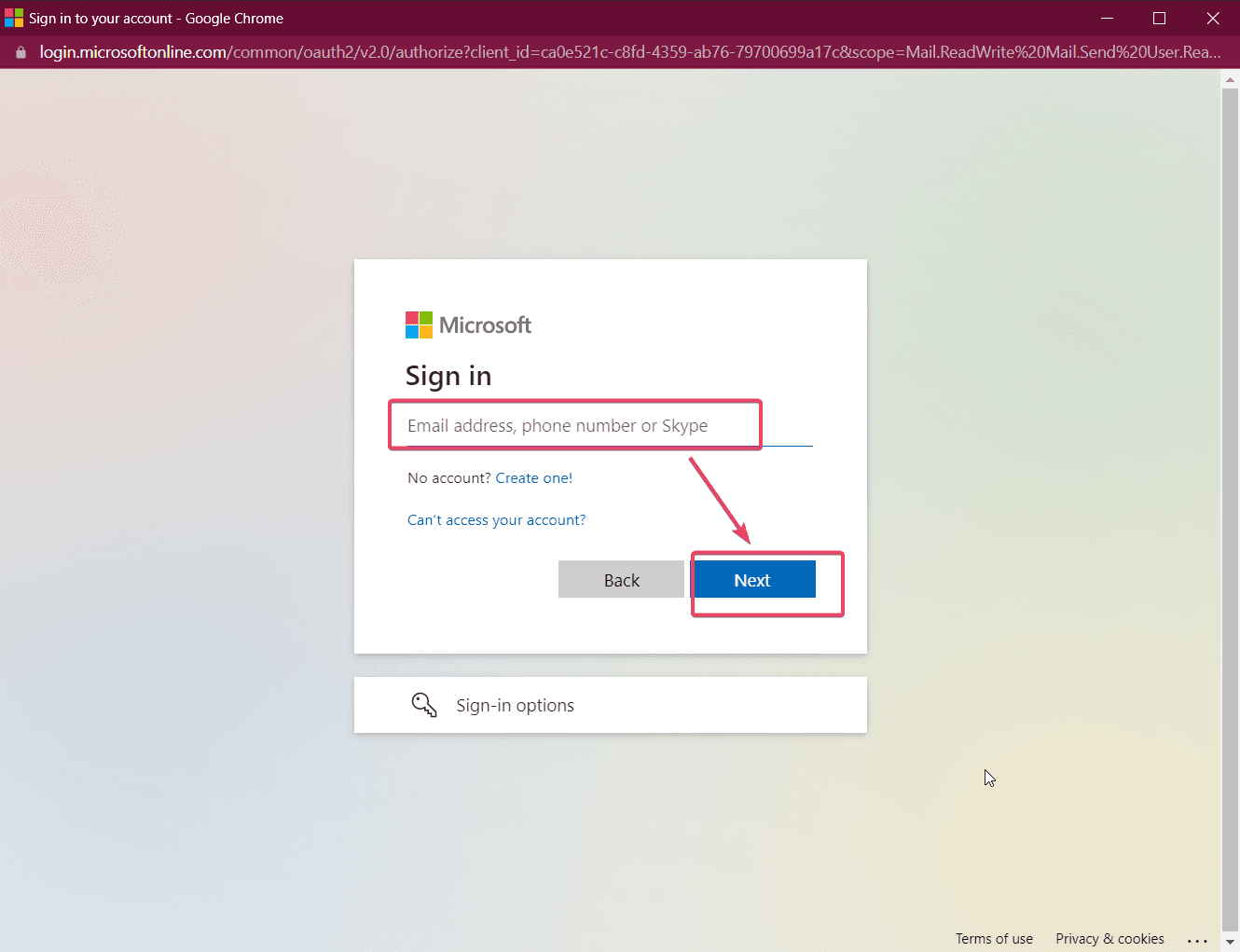
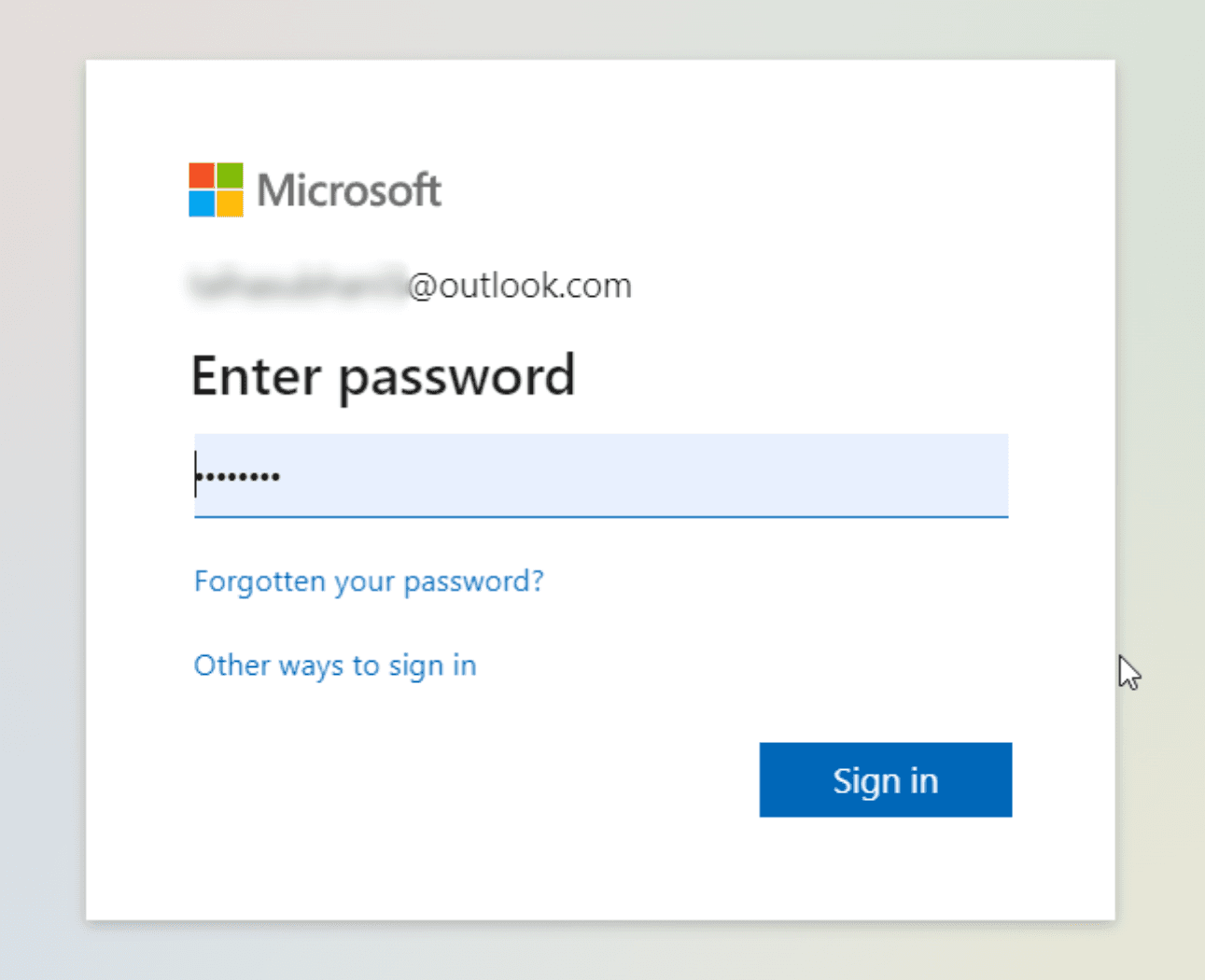
A Microsoft sign-in window will open. Enter your Outlook email address and click Next, then enter your password and click Sign in.
Step 3: Approve the permissions
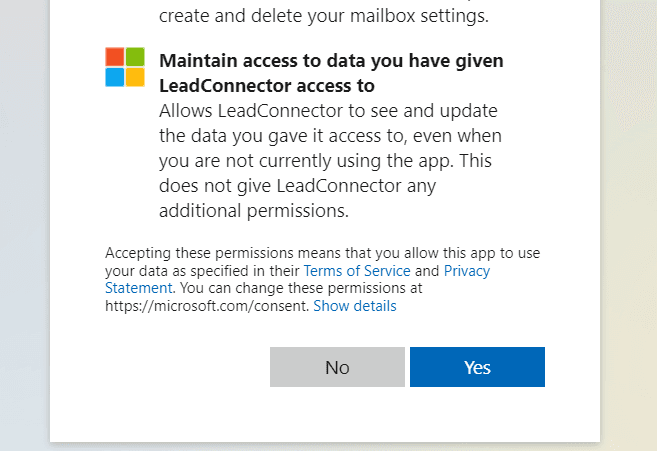
Microsoft will ask you to grant Capture access to your inbox. Click Yes to approve. This is what allows emails to sync in both directions.
Step 4: Confirm the connection
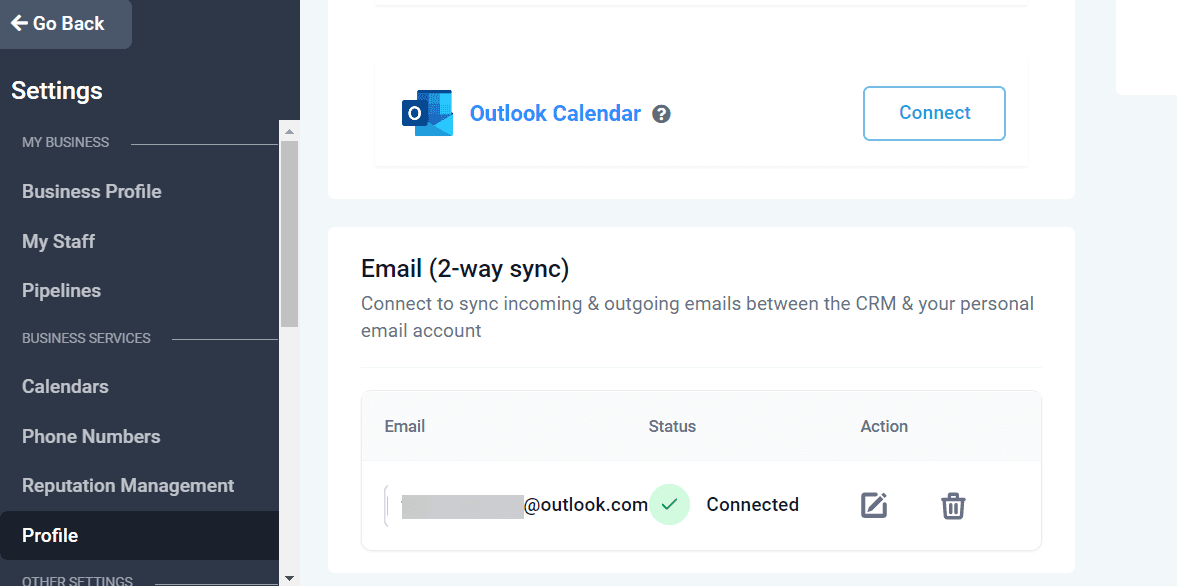
You'll be taken back to your Profile settings. Under Email (2-way sync) you'll see your Outlook address listed with a green Connected status. Setup is complete.
Managing your connection
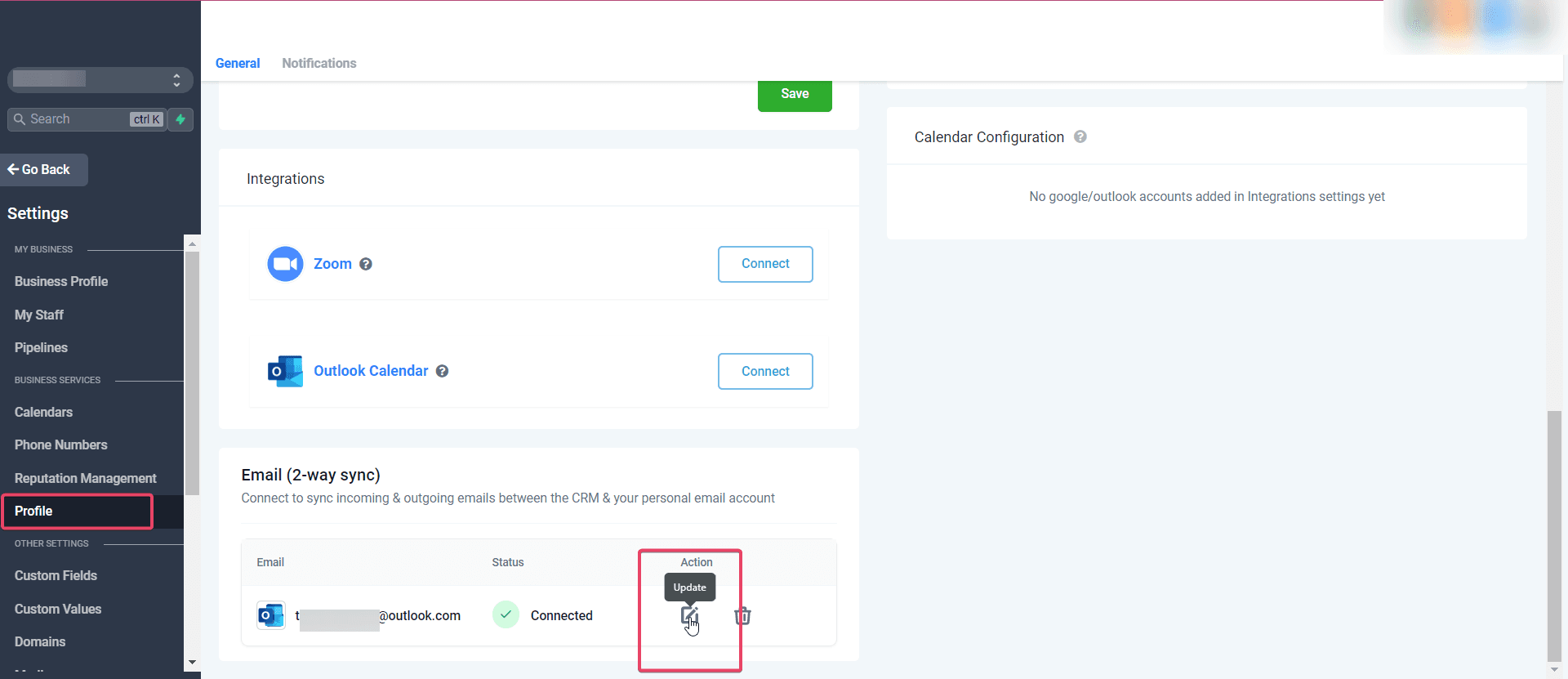
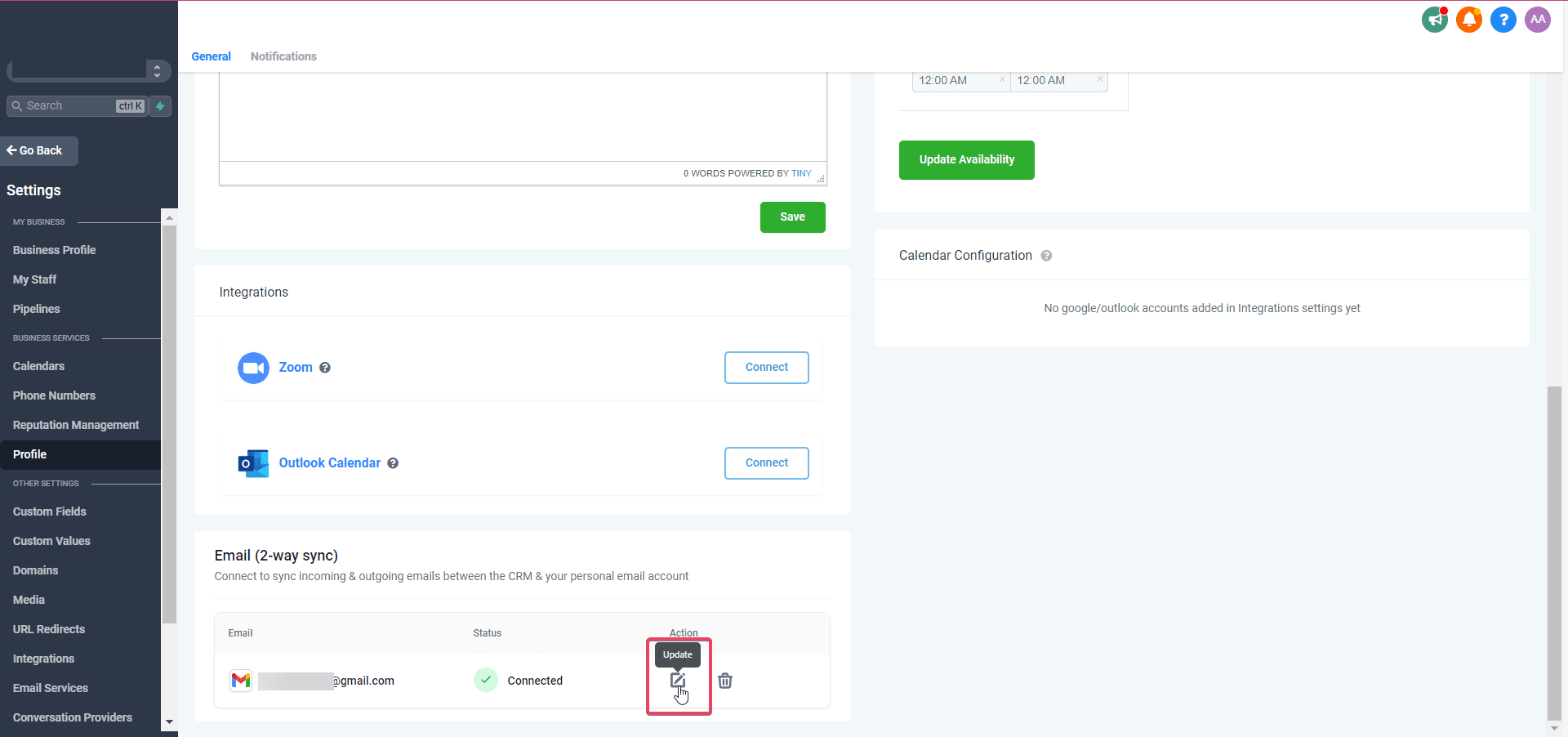
If you need to change your connected email address, click the Update icon next to your email. To remove the connection entirely, click the Delete icon. Once disconnected, emails will stop syncing immediately.
Setting up Gmail two-way sync
The setup process for Gmail follows the same steps as Outlook — the video above covers both. The only difference is selecting Gmail instead of Outlook and signing in with your Google account.
Step 1: Navigate to Settings > My Profile
Click Settings, then click the My Profile tab. Scroll down to the Email (2-way sync) section, select Gmail, and click Connect.
Step 2: Sign in to your Google account and approve permissions
A Google sign-in window will open. Select the Gmail account you want to connect and follow the prompts. Google will ask you to confirm that Capture can access your Gmail — click Allow to grant access.
Step 3: Confirm the connection
Back in your Profile settings, your Gmail address will appear with a green Connected status.
Once connected, Gmail sync works exactly like Outlook:
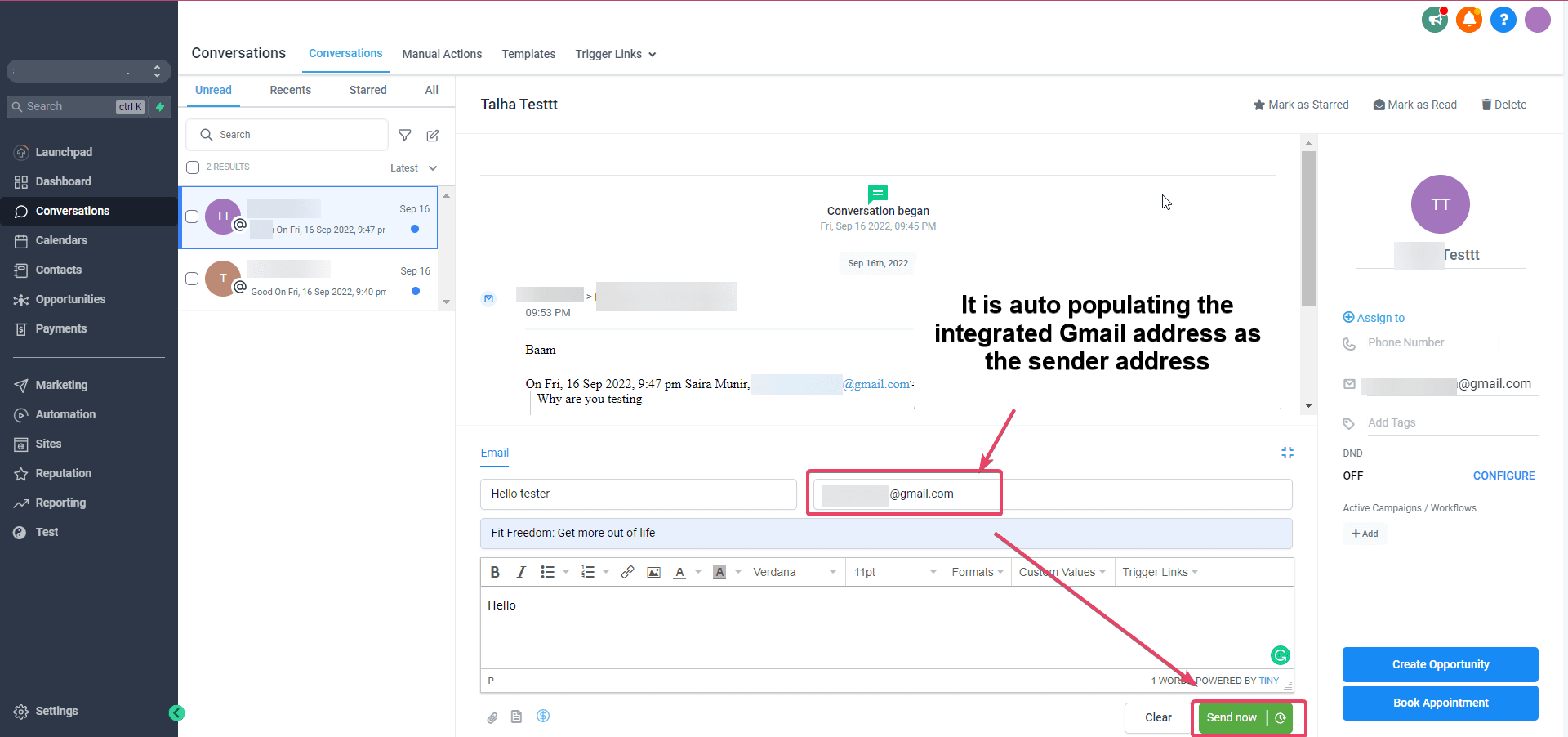
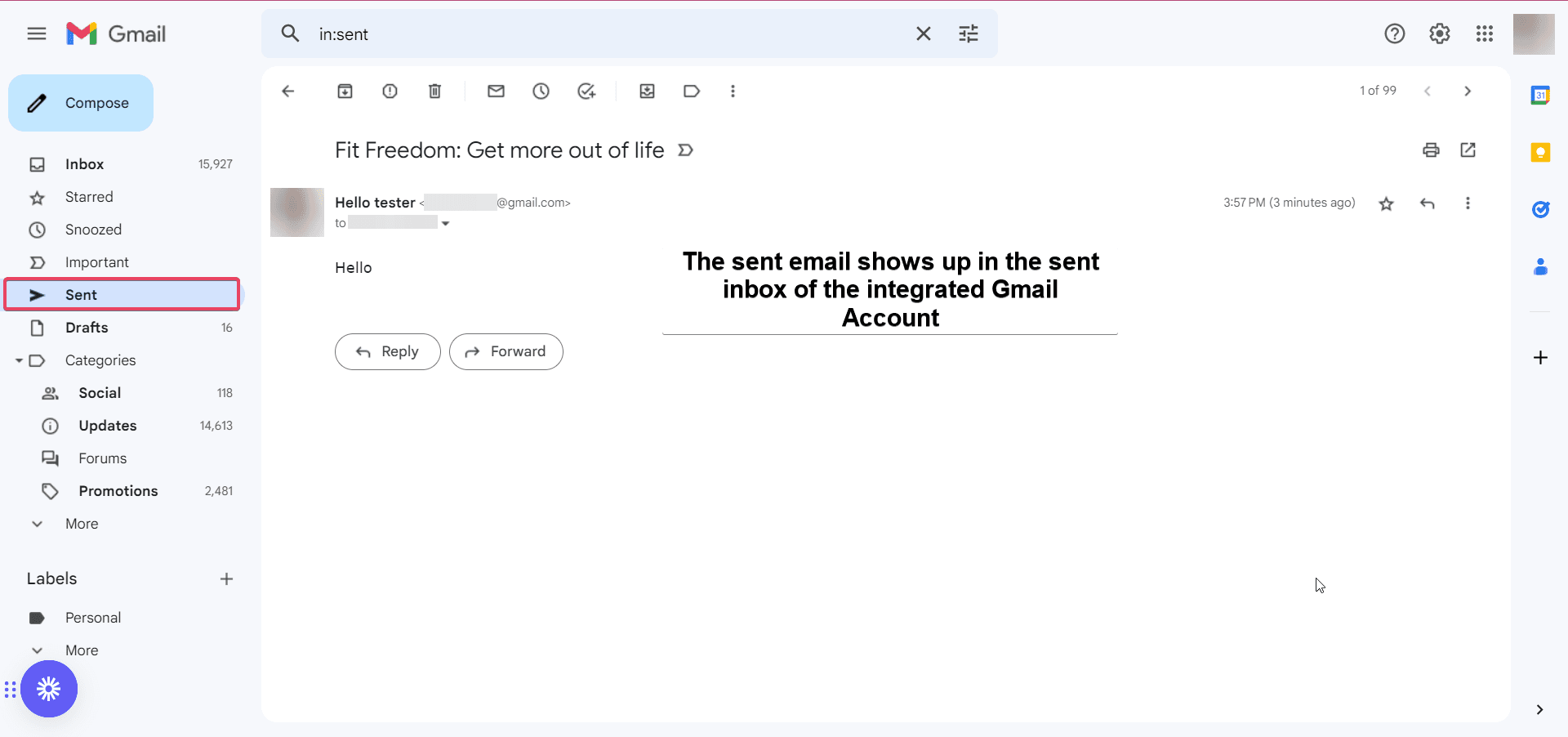
When you email a contact from Capture, your Gmail address is used as the sender, and the email appears in your Gmail Sent folder.
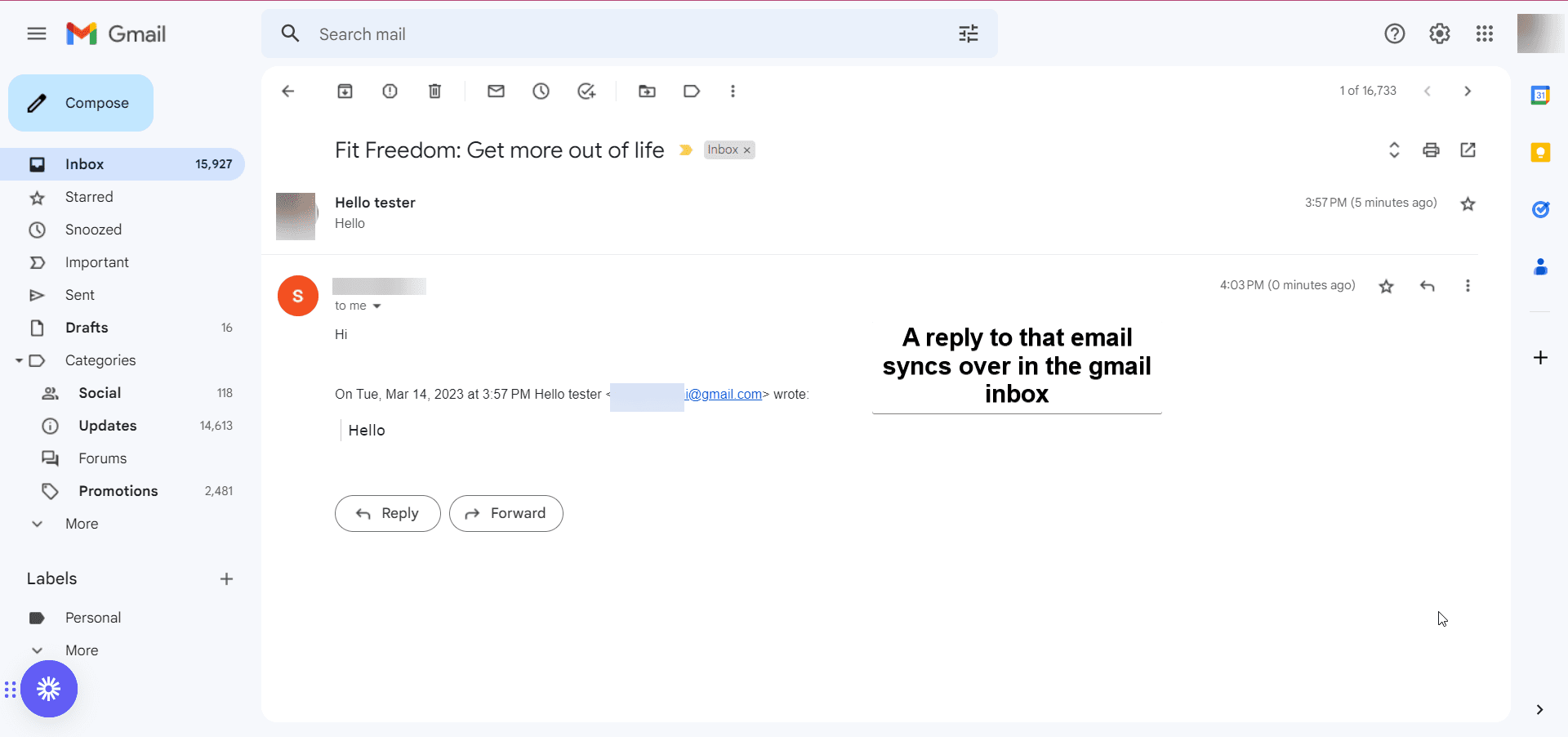
When a contact replies to your Gmail, the reply syncs into the Conversations view in Capture automatically.
Gmail sending limit: Gmail accounts are limited to approximately 500 outbound emails per day. Emails beyond this limit will not send. If you're sending high volumes, use a dedicated email address for customer communications.
Keeping internal emails out of Capture
Two-way sync only pulls in emails from people saved as contacts in Capture. This means if an internal staff member, director, or board member is ever added as a contact, their emails will start appearing in Capture for the whole team to see.
The good news is this is entirely preventable. Follow the rules below and internal emails will never appear.
The golden rule
Never add internal staff as contacts in Capture.
Two-way sync only pulls in emails from people saved as contacts. If a staff member, director, board member, or anyone with a company email address is added as a contact, their emails will appear in Capture where colleagues can see them.
The rule is simple:
| Person | Add as a contact? |
|---|---|
| Members and prospects | Yes |
| Event enquiries and external vendors | Yes |
| Staff and colleagues | No |
| Directors and board members | No |
| Anyone with a @yourgolfclub.com email | No |
Extra protection: add key internal people as Users
Capture automatically excludes emails from anyone who is listed as a User in the system, even if someone accidentally adds them as a contact. You can use this as a safety net.
Go to Settings > Team Management and add directors, finance staff, and board members as Users. They do not need to log in or use Capture. Just being listed in the system means their emails will never sync, no matter what.
What to do if you need two separate inboxes
If you want complete separation between internal and customer email, create a dedicated email address for customer communications (for example, members@yourgolfclub.com) and connect only that address to Capture. Your main inbox remains entirely separate and nothing from it ever syncs.
This is the cleanest approach if you want zero risk of internal emails appearing in Capture.
If you want complete peace of mind, disconnect the sync
If privacy is a serious concern and the rules above feel like too much to manage, the simplest option is to disconnect your inbox entirely. Once disconnected, no emails sync in either direction and there is no risk of anything private appearing in Capture.
To disconnect, go to Settings > My Profile, scroll to the Email (2-way sync) section, and click the Delete icon next to your connected email address. The disconnection takes effect immediately.